
Moving from the QWERTY keypad to touchscreen input could be quite frustrating when it comes to typing. My own transition from QWERTY keypads to touchscreen input was hell. I happen to type A LOT and am quite fast on QWERTY keyboards / keypads. As proficient as I was, I found touchscreen input really frustrating. Here’s a screenshot of what it was like typing:
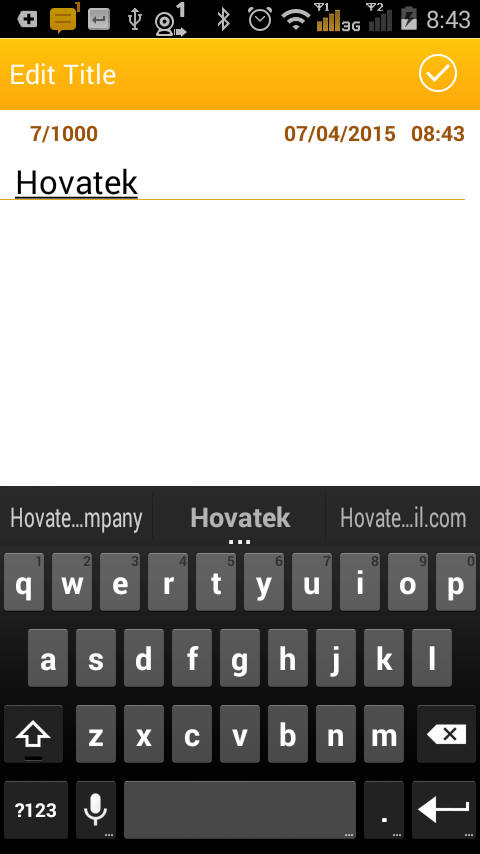
If I had to type “Hovatek” for example, that would be my finger moving seven times. I tried using both thumbs on the touchscreen input but I spent more time correcting spellings than sending messages. That was simply unacceptable!
Enter TouchPal X!
I figured there had to be a better way to type on touchscreen devices so I did some research and came across this wonderful app called TouchPal X and it was (and still is) free. Here’s a screenshot on the same phone using TouchPal X keyboard
Installing and Setting up TouchPal X
You can install TouchPal X from the Google Playstore app or download the apk online and install. I’ll walk you through the TouchPal X installation using the apk method.
1. Navigate to the location of the apk file and tap it

2. Select Install
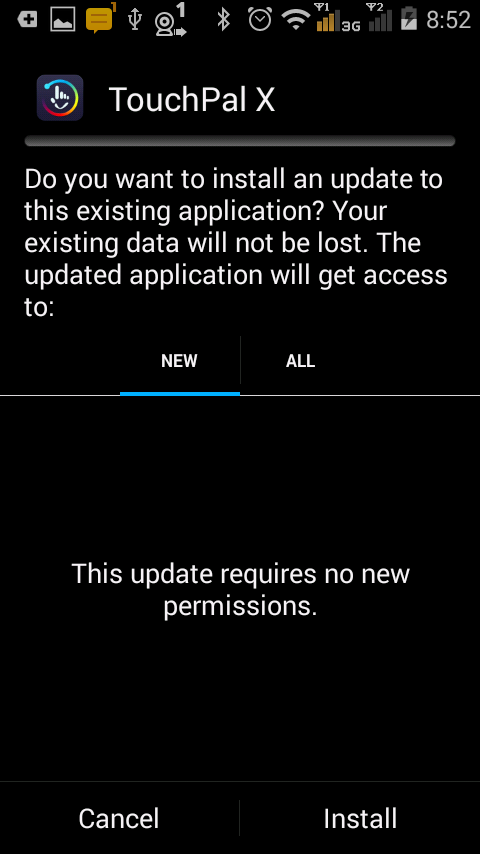
3. Wait for the installation to be complete

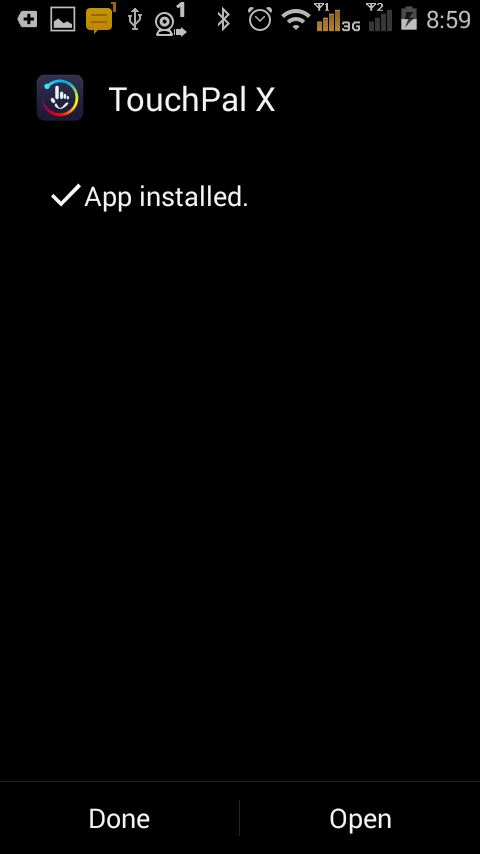
4. Once installation is complete, select Open
5. Tap 1 Enable TouchPal X

6. Tap Continue if you get a Privacy Policy prompt

7. Tick the box in front of TouchPal X and select OK to confirm

8. Press the back (arrow) button to continue with number 2 (relaunch TouchPal X if it gets minimized)
9 . Tap 2 Set as active keyboard
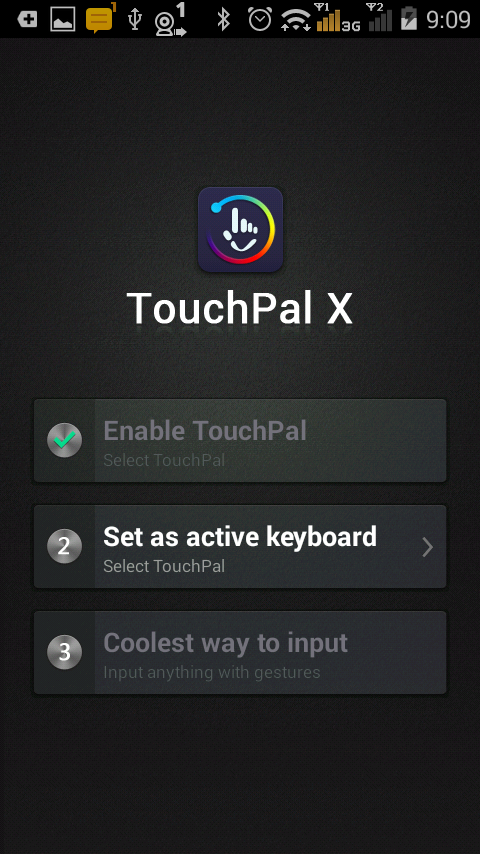
10. Select TouchPal X

11. Tap 3 Coolest way to input

12. See the introductory clip on using TouchPal X
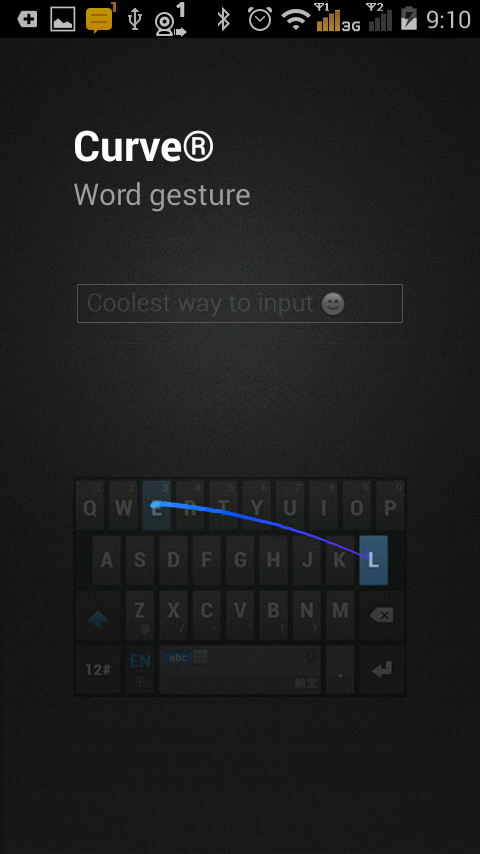
Behold the screenshot of the TouchPal X keyboard. What a beauty!

How to use TouchPal X
A.
Input
Typing using TouchPal X is as easy as sliding across the keyboard. It also auto spaces words so you don’t need to keep tapping the space bar after each word you slide. If you wish to type Hovatek for example, just slide (without lifting your finger) from “h” to “o” to “v” to “a” to “t” to “e” to “k” then lift your finger when done. To type a word with repeating letters like “well” or “winning” , you slide past the repeating letter just once (no need to try repeating it)
B.
Symbols
To enter symbols or numbers, tap the 12# button.
In the numbers and symbols section, tap the 1/2 button by the bottom right corner for more symbols.
For Emoticons, tap the Emoticon icon (to left of the space bar) in the more symbols section

C.
Shortcuts
* Numbers: slide QWERTYUIOP upward to type numbers
* Emoticons: Slide from the bottom of the keyboard to the top to reveal the emoticons.
D.
Word prediction
Turn the word prediction ON or Off by sliding the button on the space bar. The word prediction suggests additional words which match what you slid on the keyboard.
E.
Add a word to the Dictionary
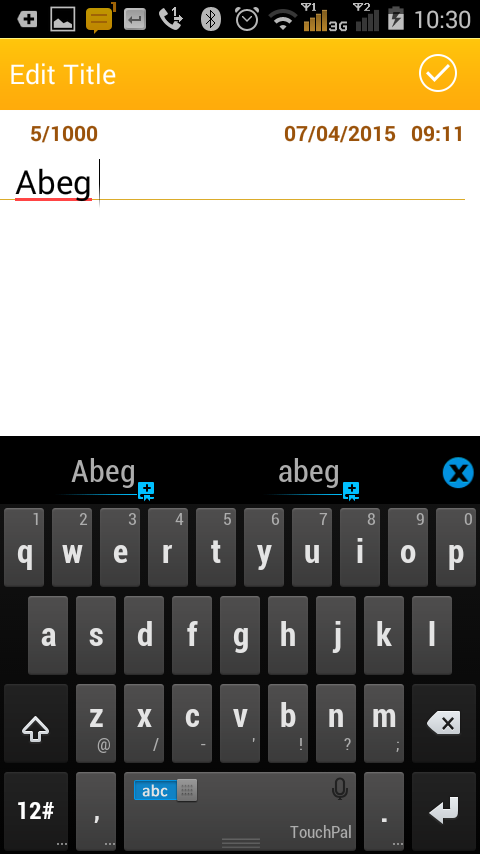
To add a word that is not in the English language dictionary (like Abeg, dey, commot, jare etc) , just type the word on the keyboard. The word will then appear just above the keyboard, tap it. Tap the word again (now with a + symbol in front of it) to add it. You can then slide the word on the keyboard in the future.
F.
Copy, Paste, End, Home, Select, Cut, Del and Select All
Tap the pen icon at the top to reveal the Editor menu. Use the blue arrow button at the bottom to return to the normal keyboard mode

G. Voice input: Tap the Mic icon to use the voice input (Google voice needs to be installed for this to work)

Where to download Touchpal X
You can download TouchPal from Playstore or download the apk file at http://www.appsapk.com/touchpal-x-keyboard/
Hovatek….just a button away!
hi heve ugejag hovatek