
If you’re particular about your PC’s boot up speed and performance but have not explored autostart items then you might want to grab a seat. Autostart items influence your PC’s boot up time to a very high degree and could be the difference between a fast and a lagging PC.
What are autostart items?
Autostart items are programs and services which run once your Windows PC boots up. These items could be essential (core) or non-essential. Since these items use some system resources on boot, they have a considerable effect on your PC’s bootup time.
Are autostart items good or bad for my PC?
The only downside of using autostart items is when they become too many or consume too much RAM. Autostart items could infact come in very handy, an example is Jaws (a screen reader for Windows) for the visually impaired. Its up to you to limit them to what you really need.
Run what you need + Close what you don’t need = Faster PC
How do I check which programs or services startup with Windows?
There are two places to check:
1. Startup folder
2. System Configuration Dashboard
We shall discuss these two in detail below.
How do I add or remove a program or service from autostart items?
There are two methods you could use:
Method A: Startup folder
1. Press the Windows button or launch the Start Menu
2. In the Search bar, type
shell:startup
and press Enter

3. The Startup folder should open
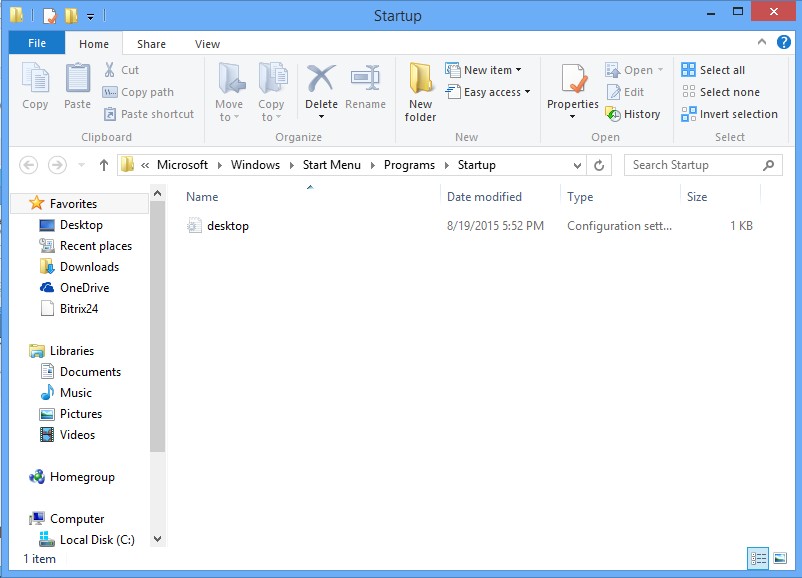
4. To make a program autostart, copy its shortcut (usually from the Desktop) into this Startup folder. To stop a program from auto starting, delete its shortcut from the Startup folder
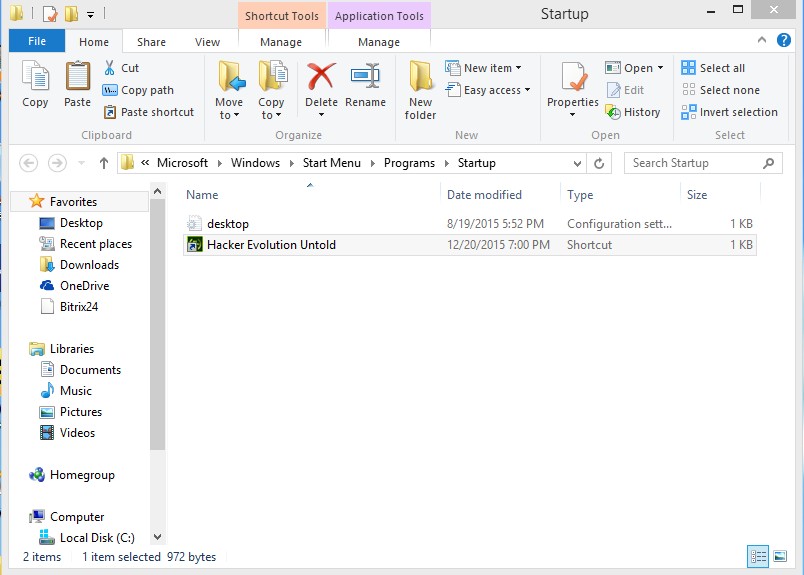
Method B: System Configuration Dashboard
1. Press the Windows button or launch the Start Menu
2. In the Search bar, type
msconfig
and press Enter

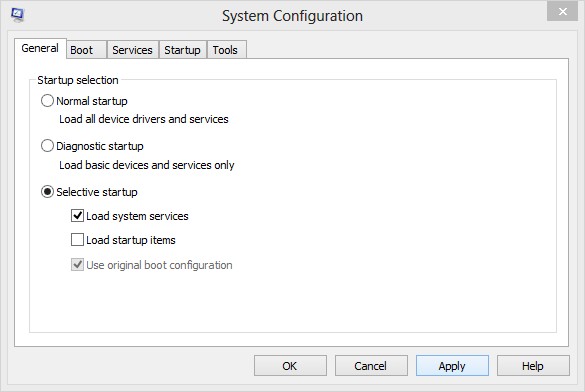
3. The System Configuration Dashboard should appear

4. Tick Selective Startup
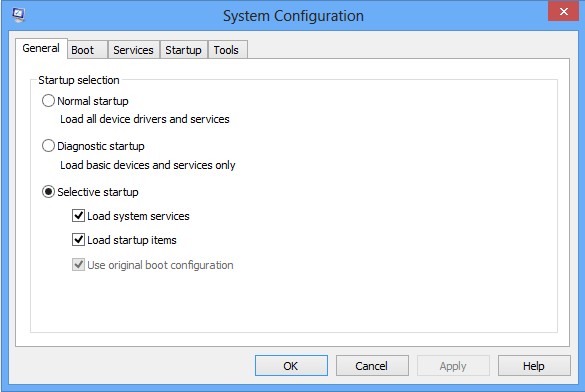
5. Untick Load startup items
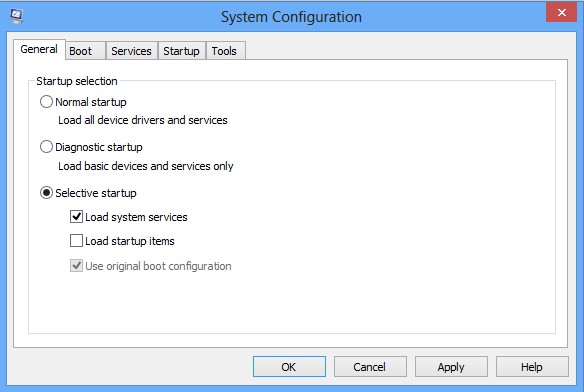
6. Click Apply then OK. If prompted to restart then click Restart
7. To manage startup Services, click on the Services tab
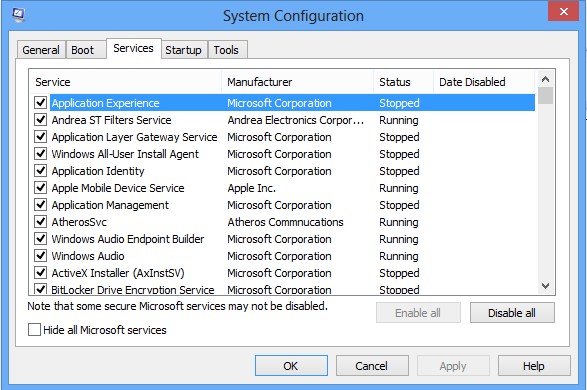
8. Tick any item you wish to autostart and untick any item you wish to remove from autostart
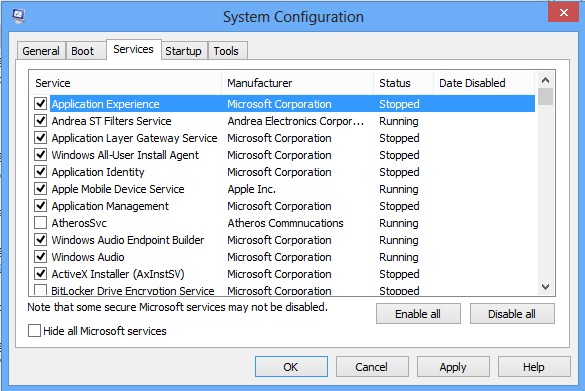
9. Click Apply then OK and restart the PC
Hovatek….just a button away!