I already knew that the Samsung Galaxy A12 could open applications in floating windows using the phone’s touchscreen interface. What I wanted to find out was whether I could control those same floating windows from a computer using ADB.
The idea came from the old TV channel-mosaic feature, where several television channels could be displayed on the screen at the same time. Instead of TV channels, I wanted to see whether I could arrange several Android applications on the Galaxy A12 display, with ADB controlling their positions and sizes.
My original target was a six-window arrangement: three applications across the top and another three across the bottom.
I also used scrcpy during the experiment to mirror the Galaxy A12 display on my computer. This became important because an ADB command could execute without an obvious error while the result on the phone was not necessarily what I expected.
What started as a fairly simple window-resizing experiment eventually became an investigation into Android tasks, freeform windowing, minimum window sizes, logical display density and Samsung’s limit on the number of simultaneously visible floating windows.
1. Connecting the Samsung Galaxy A12 to ADB
I started by connecting the Galaxy A12 to my computer with USB debugging enabled and checking whether ADB could communicate with it.
adb devicesThe phone appeared in the device list with device beside its serial number, confirming that the ADB connection was working.
I then checked the phone model, Android version and build:
adb shell getprop ro.product.model
adb shell getprop ro.build.version.release
adb shell getprop ro.build.display.id
The phone returned:
- Model:
SM-A125F - Android version:
12 - Build:
SP1A.210812.016.A125FXXS5CXE3
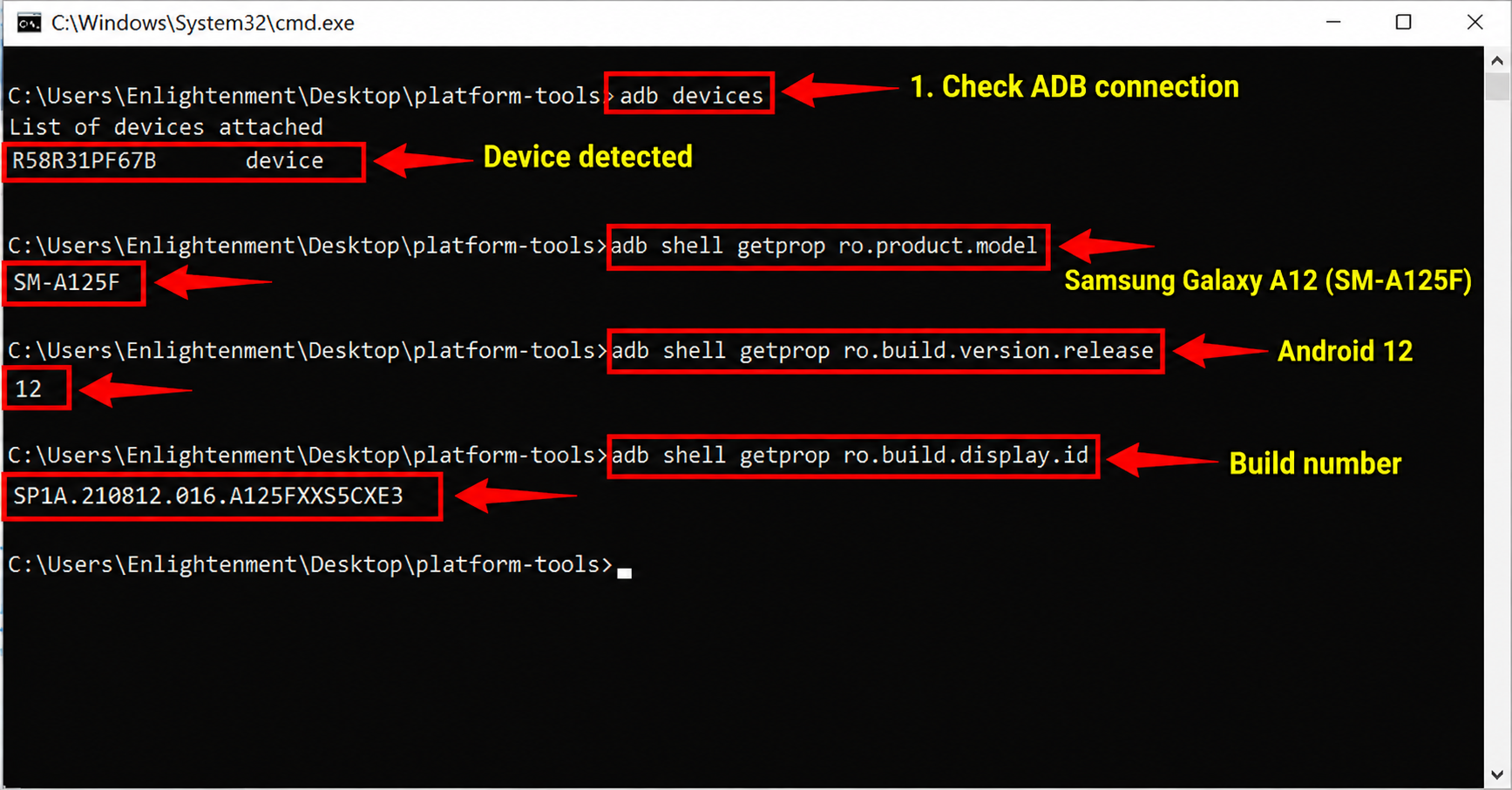
This established the environment I was working with before I started changing anything.
2. Mirroring the Galaxy A12 With scrcpy
Command Prompt could show me whether an ADB command had been accepted, but it could not always tell me what had actually happened visually on the phone.
For that reason, I used scrcpy to mirror the Galaxy A12 display on my computer.
With the phone connected through USB and USB debugging enabled, I opened a terminal in the scrcpy folder and ran:
scrcpy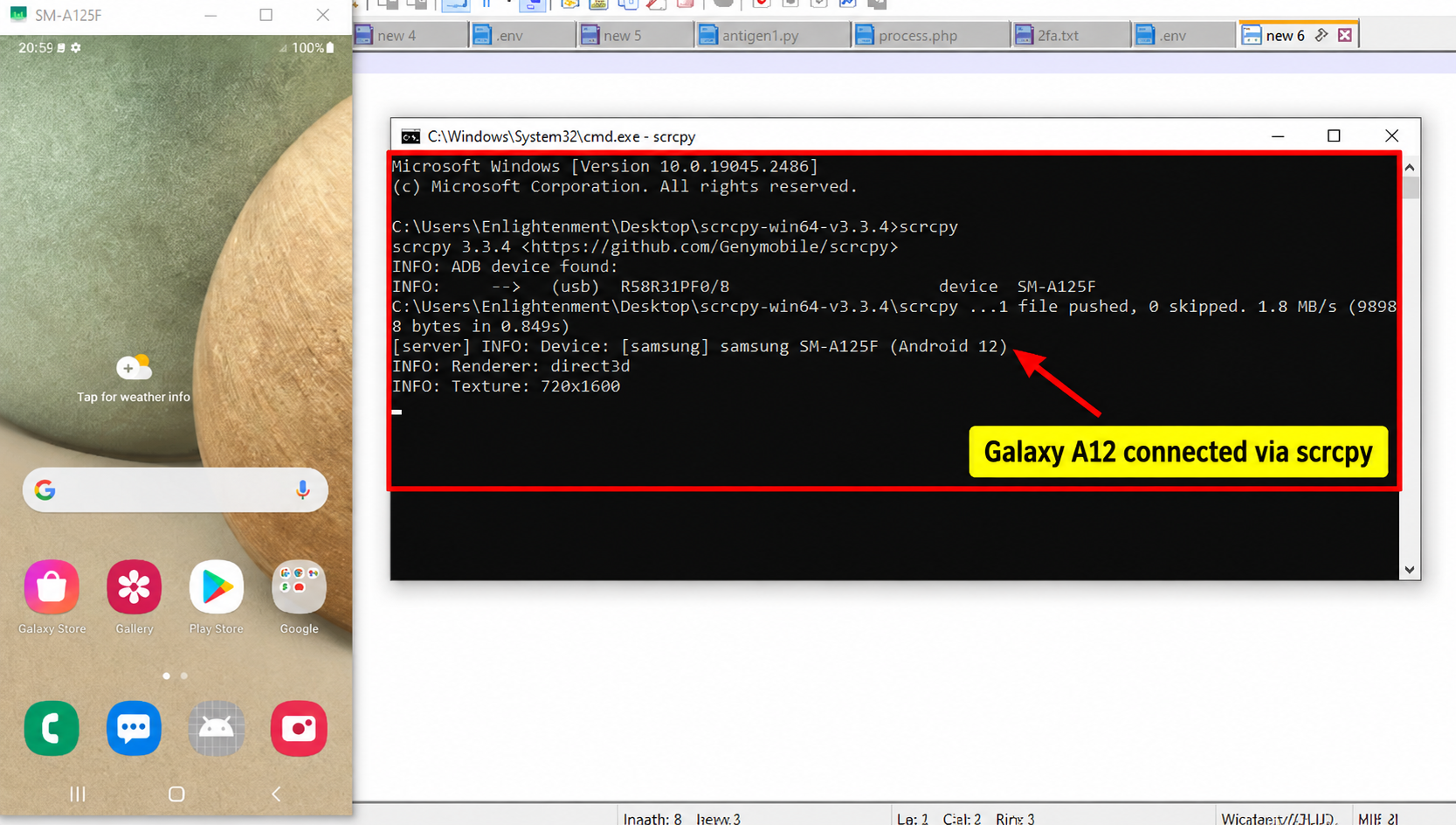 This opened the Galaxy A12 display in a window on the computer. I could place scrcpy beside Command Prompt and watch what happened on the phone while running ADB commands.
This turned out to be particularly useful later because I could capture both the ADB command and the corresponding change on the phone in the same screenshot.
3. Enabling Freeform Window Support
The Galaxy A12 could already create floating windows through Samsung’s touchscreen interface. My goal was to see how much of the underlying functionality I could control through ADB.
I enabled Android’s freeform-related settings with:
adb shell settings put global enable_freeform_support 1
adb shell settings put global force_resizable_activities 1
I then checked both settings:
adb shell settings get global enable_freeform_support
adb shell settings get global force_resizable_activities
Both returned:
1This confirmed that the freeform support and force-resizable settings had been enabled.
At this point, however, I had not yet proved that every application I launched would actually become a freeform task.
4. Opening the Applications for the Multi-Window Test
Before trying to arrange a grid, I needed several applications running.
I checked the packages installed on the phone:
adb shell pm list packages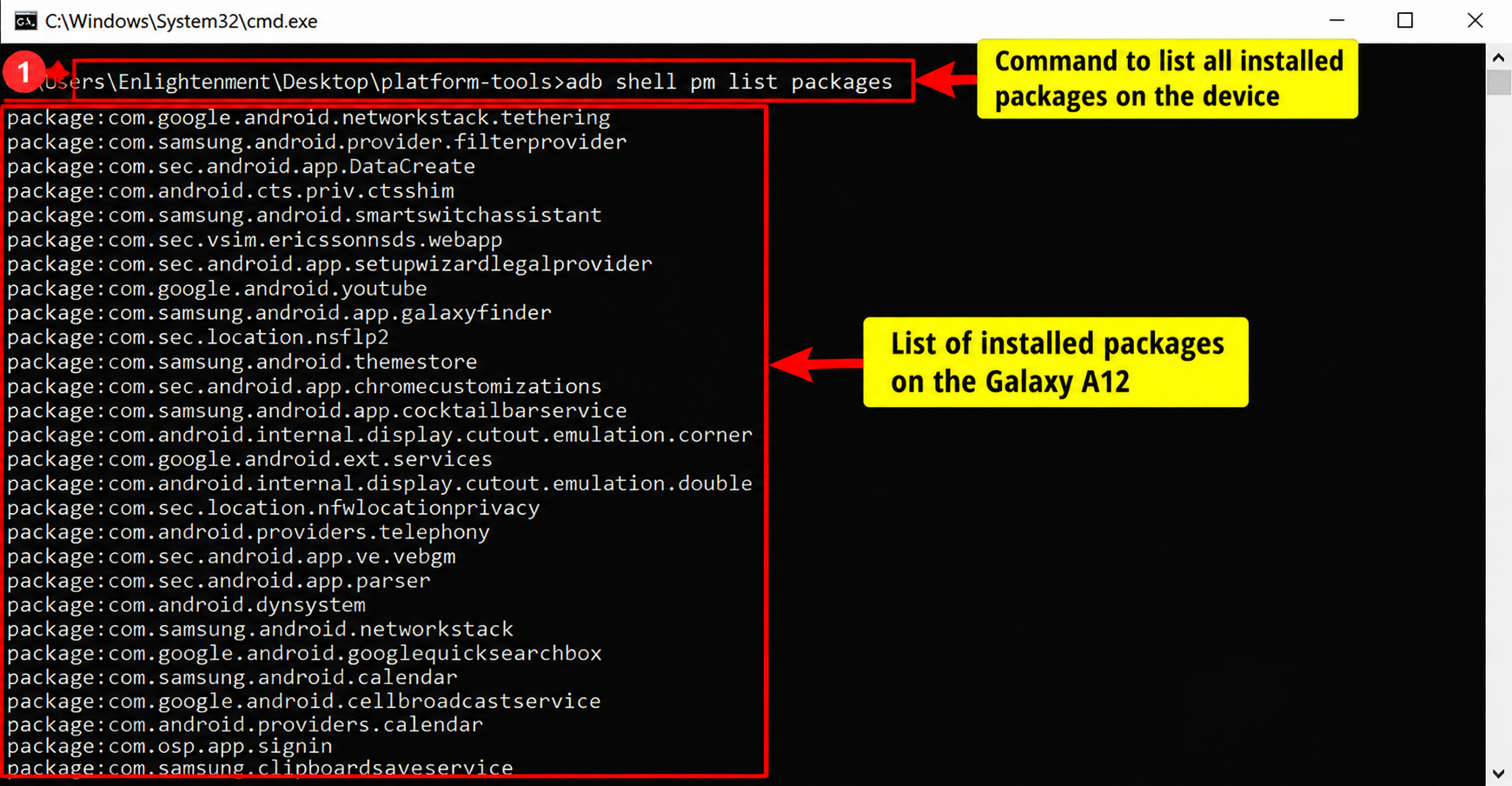 Among the applications I selected were Chrome, YouTube, Google Play Store, Samsung Gallery and Facebook. I also used Android Settings as the sixth application.
The relevant package names were:
com.android.chrome
com.google.android.youtube
com.android.vending
com.sec.android.gallery3d
com.facebook.katana
com.android.settings
I explicitly requested freeform mode when launching Settings:
adb shell am start --windowingMode 5 -n com.android.settings/.Settings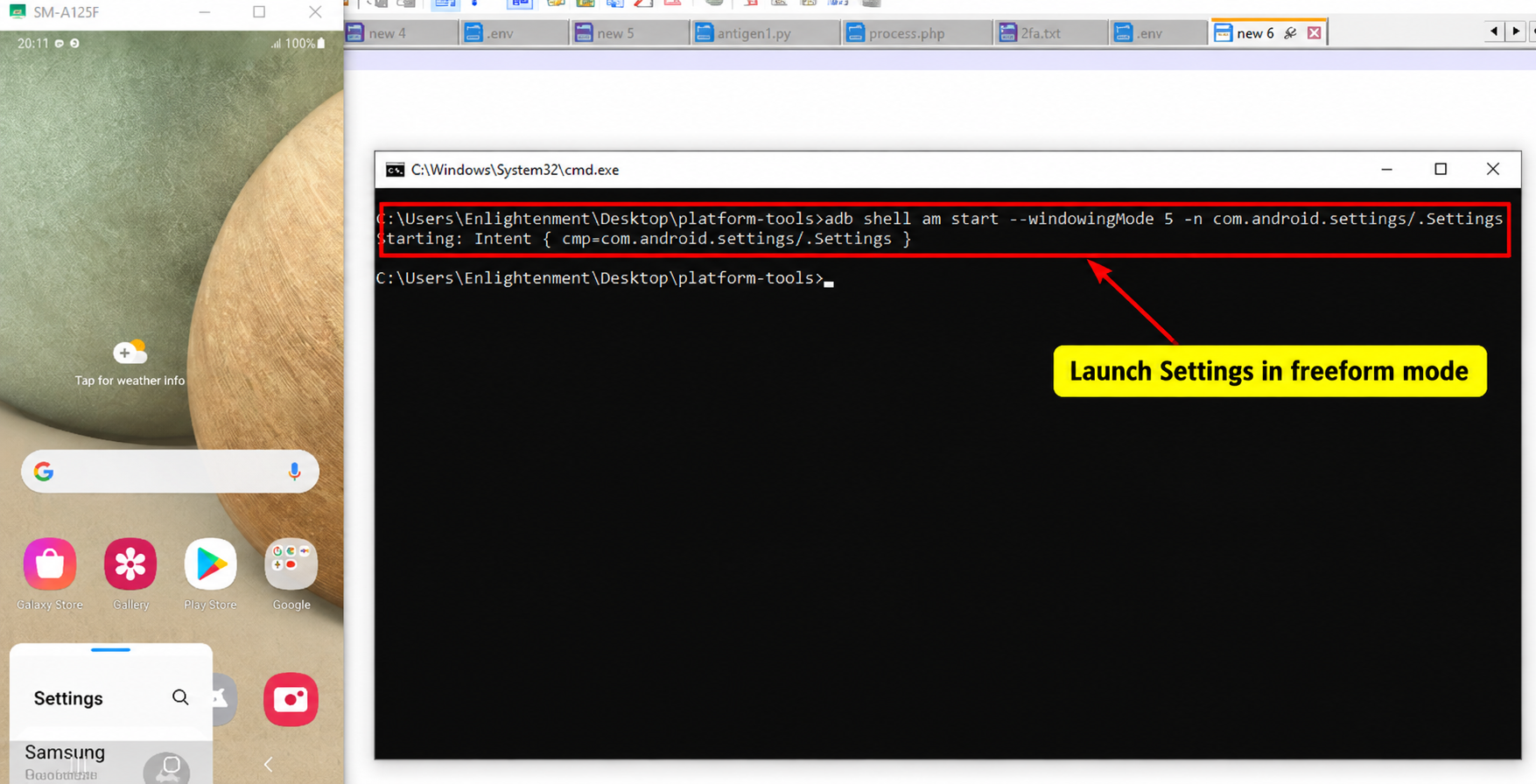 I initially launched the other five applications using their package names:
adb shell monkey -p com.android.chrome 1
adb shell monkey -p com.google.android.youtube 1
adb shell monkey -p com.android.vending 1
adb shell monkey -p com.sec.android.gallery3d 1
adb shell monkey -p com.facebook.katana 1
Each command returned Events injected: 1.
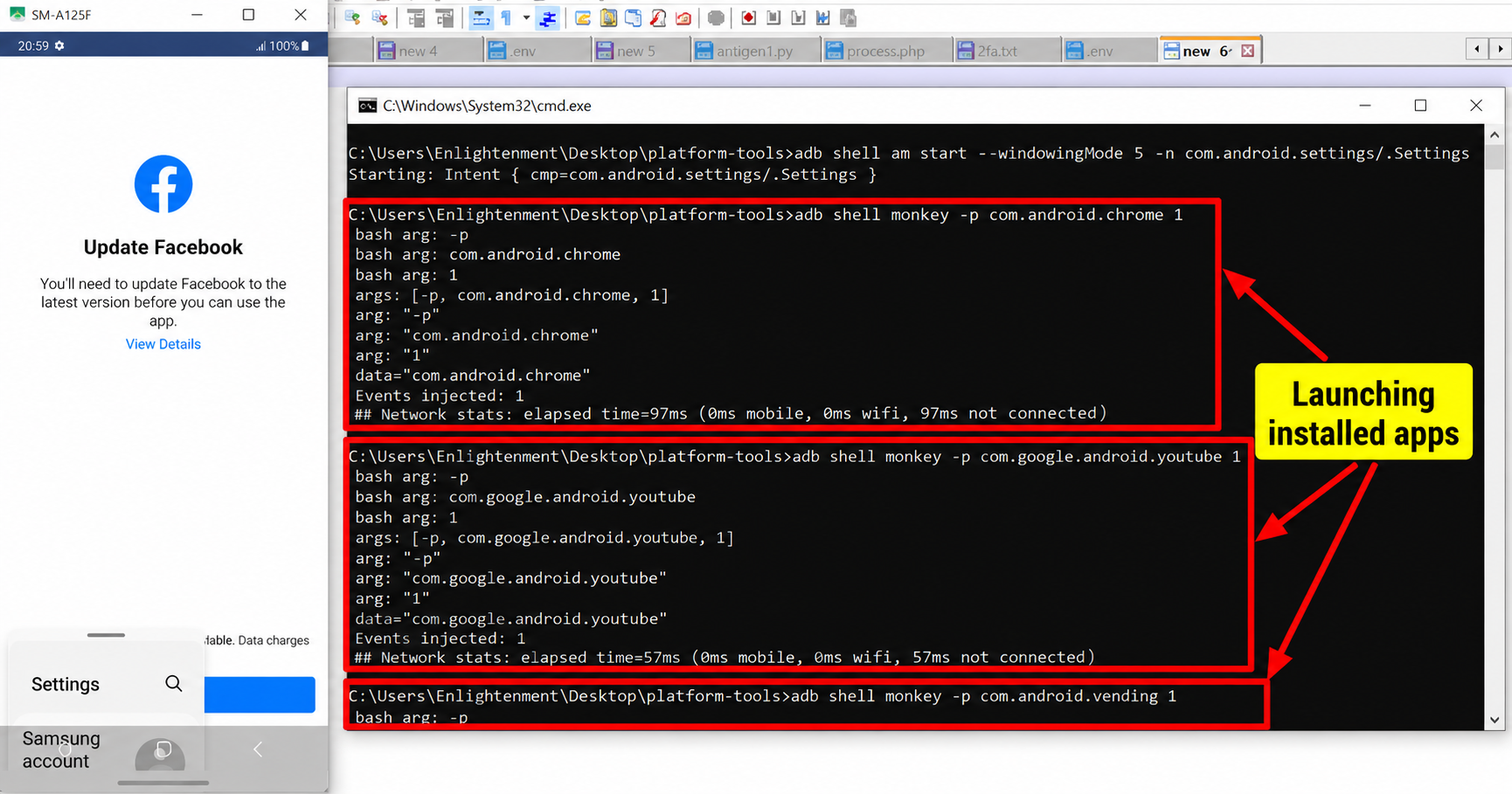 At first this looked promising, but I later discovered that
 Events injected: 1 only confirmed that the launch input had been sent. It did not mean that the application had entered freeform mode.
5. Discovering That Most of the Apps Were Still Fullscreen
I initially thought that once the applications were running, I could start assigning coordinates to them. scrcpy quickly showed that something was wrong. Instead of forming a neat grid, some applications were simply covering others.
I stopped resizing and checked Android’s task information:
adb shell am stack list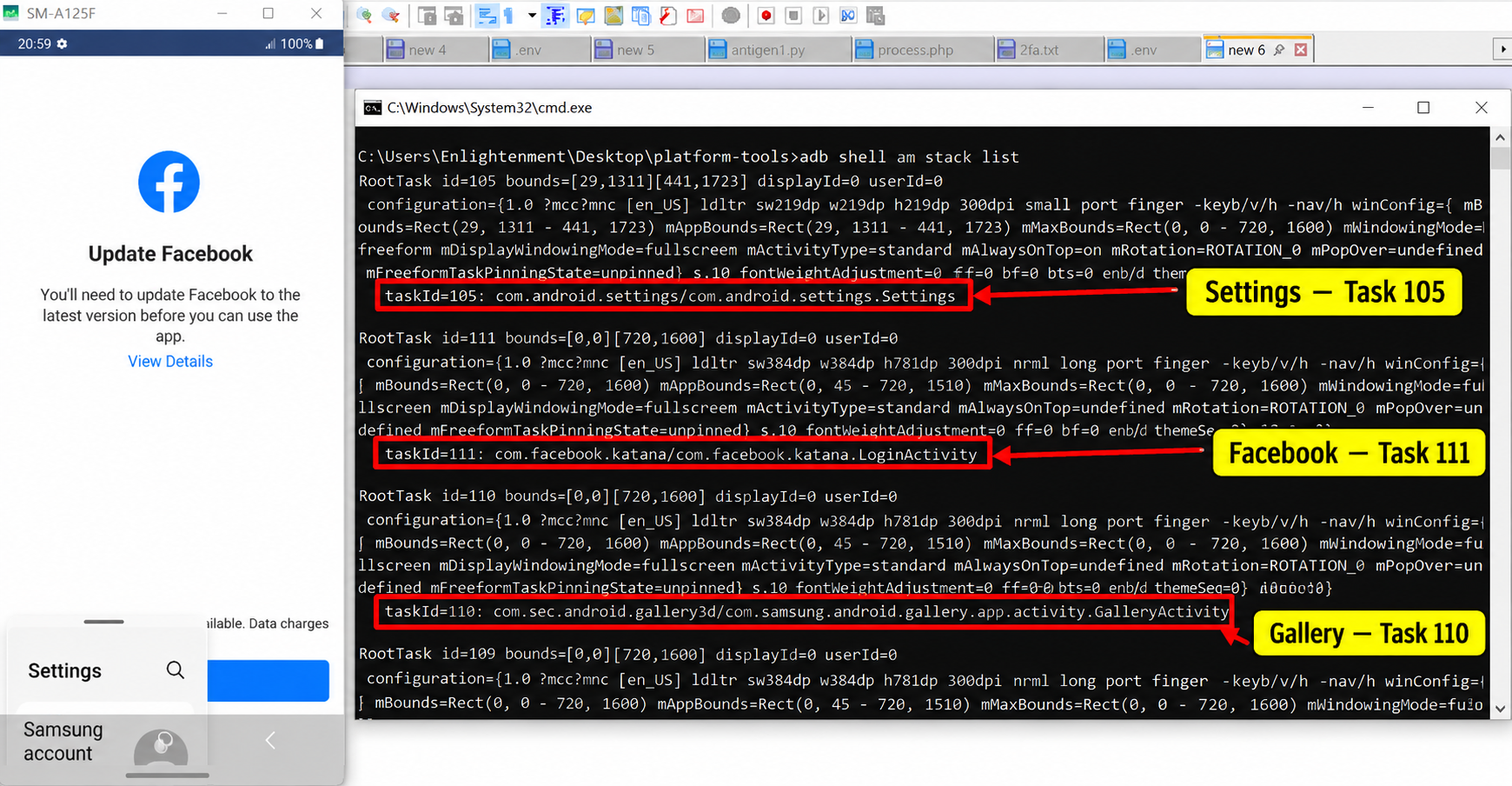 After rebooting the phone and repeating the experiment, Settings was assigned task ID
 105 and Android reported it as:
taskId=105
mWindowingMode=freeform
visible=true
The other applications were different:
Chrome      taskId=106   fullscreen  visible=false
YouTube     taskId=107   fullscreen  visible=false
Play Store  taskId=109   fullscreen  visible=false
Gallery     taskId=110   fullscreen  visible=true
Facebook    taskId=111   fullscreen  visible=true
This explained the overlap.
Settings was genuinely running as a freeform task, while Chrome, YouTube, Play Store, Gallery and Facebook were still fullscreen tasks.
The first problem was therefore not the resize command. I first needed to get the other applications into freeform mode.
This also showed why task IDs should not be hard-coded. Android can assign new IDs when tasks are recreated or the phone is rebooted.
6. Finding the Correct Launcher Activities
Before relaunching the fullscreen applications in freeform mode, I needed their proper launcher activities.
I had already discovered that copying the current topActivity from am stack list was not always reliable. Play Store, for example, had an internal activity that produced a SecurityException when I tried to launch it directly because it was not exported.
I therefore asked Android to resolve the normal launcher activity for each package:
adb shell cmd package resolve-activity --brief -a android.intent.action.MAIN -c android.intent.category.LAUNCHER com.android.chrome

adb shell cmd package resolve-activity --brief -a android.intent.action.MAIN -c android.intent.category.LAUNCHER com.google.android.youtube

adb shell cmd package resolve-activity --brief -a android.intent.action.MAIN -c android.intent.category.LAUNCHER com.android.vending

adb shell cmd package resolve-activity --brief -a android.intent.action.MAIN -c android.intent.category.LAUNCHER com.sec.android.gallery3d

adb shell cmd package resolve-activity --brief -a android.intent.action.MAIN -c android.intent.category.LAUNCHER com.facebook.katana
For example, Android resolved Play Store to:
com.android.vending/.AssetBrowserActivityYouTube resolved to:
com.google.android.youtube/.app.honeycomb.Shell$HomeActivity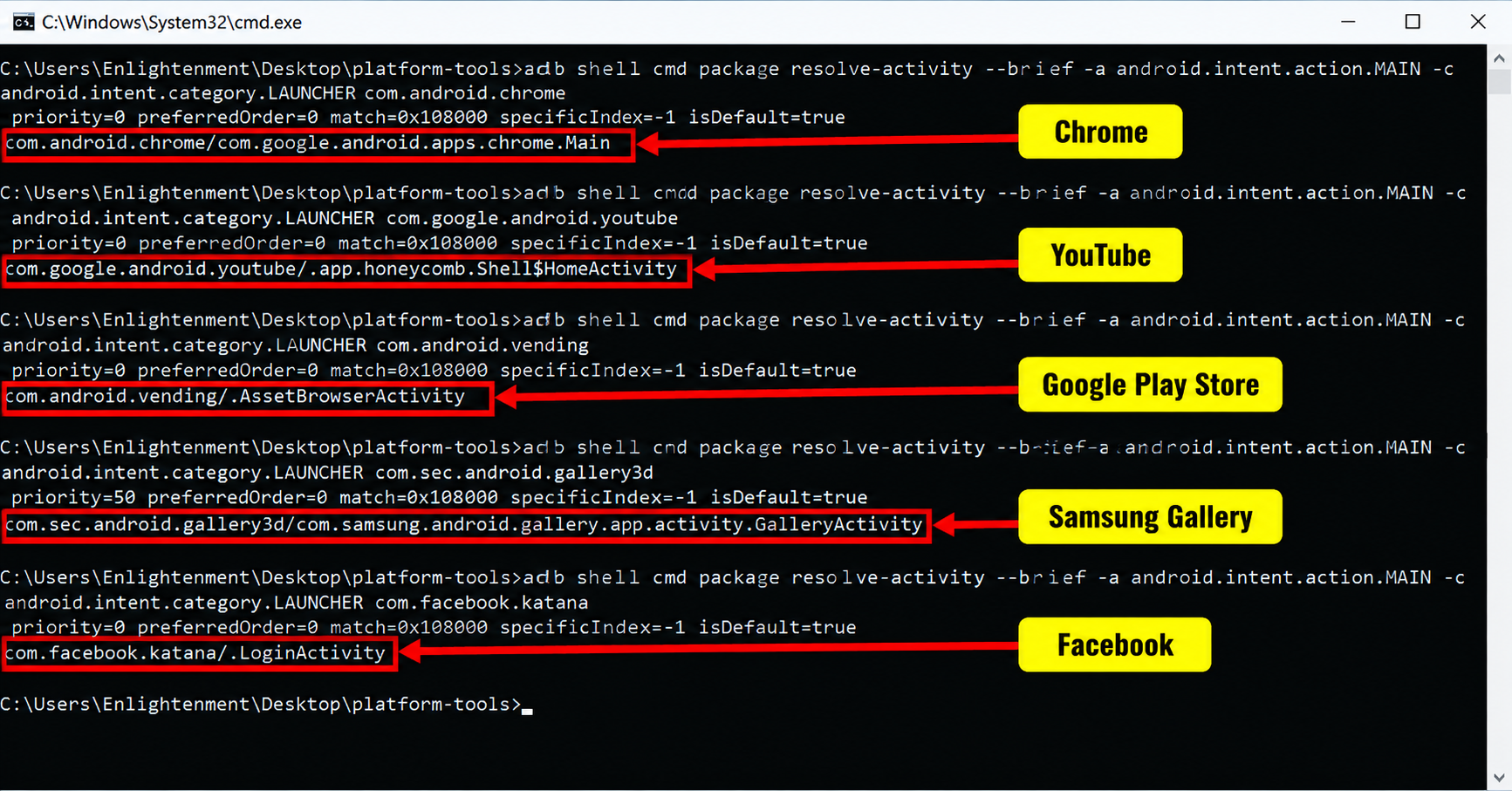
This gave me proper launcher components to work with instead of guessing activity names.
7. Relaunching the Apps in Freeform Mode
Once I had the correct components, I could stop the existing fullscreen tasks and relaunch the applications while explicitly requesting Android’s freeform windowing mode.
For Chrome, I used:
adb shell am force-stop com.android.chrome
adb shell am start --windowingMode 5 -n com.android.chrome/com.google.android.apps.chrome.Main
Chrome was subsequently reported as a genuine freeform task.
For Play Store, I used the launcher activity Android had resolved:
adb shell am force-stop com.android.vending
adb shell am start --windowingMode 5 -n com.android.vending/.AssetBrowserActivity
Play Store also appeared in the task list with mWindowingMode=freeform.
For Samsung Gallery, I used:
adb shell am force-stop com.sec.android.gallery3d
adb shell am start --windowingMode 5 -n com.sec.android.gallery3d/com.samsung.android.gallery.app.activity.GalleryActivity
For Facebook, I used:
adb shell am force-stop com.facebook.katana
adb shell am start --windowingMode 5 -n com.facebook.katana/com.facebook.katana.LoginActivity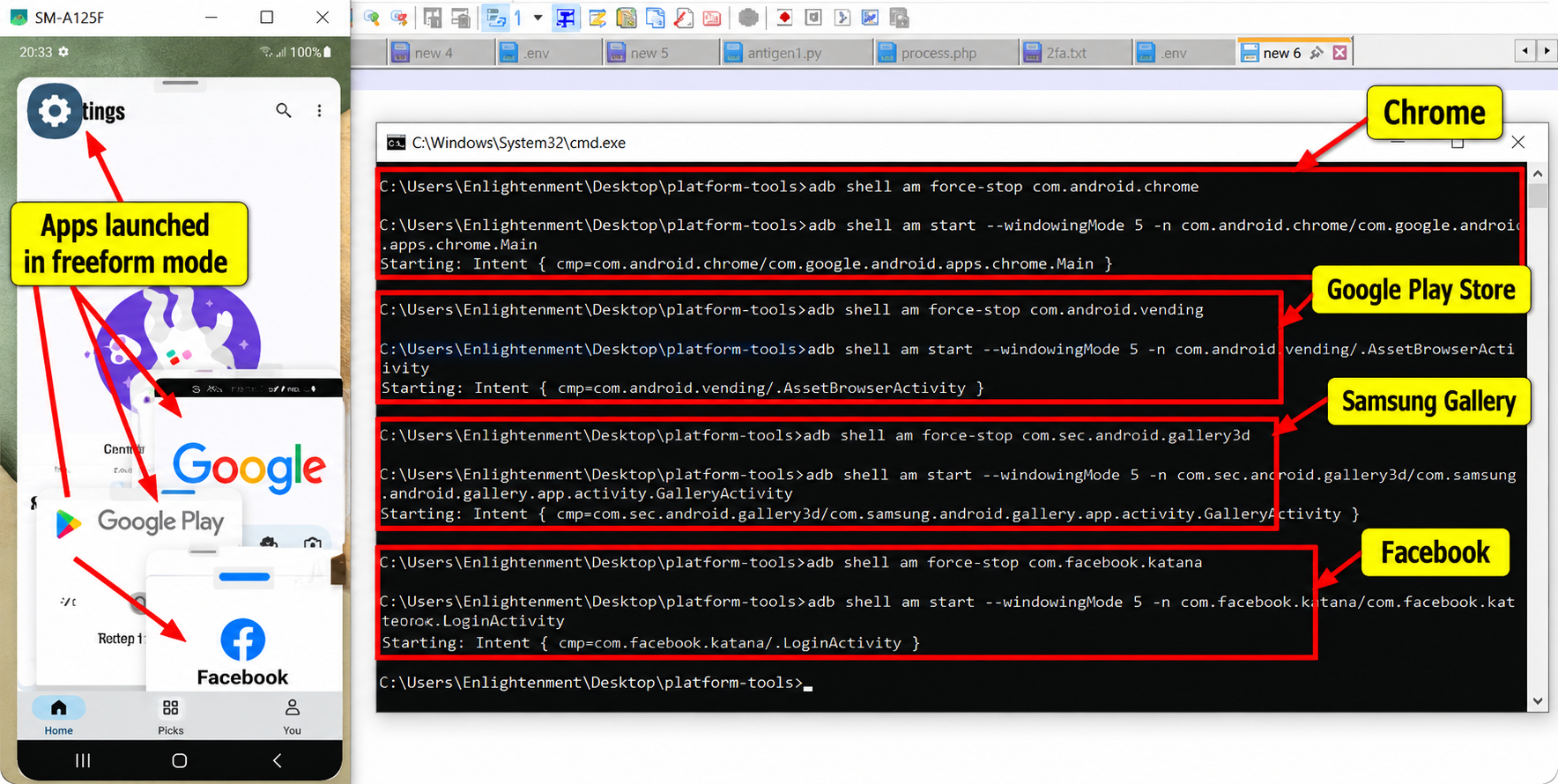
YouTube required one extra correction because its launcher activity contained a dollar sign:
com.google.android.youtube/.app.honeycomb.Shell$HomeActivityMy first attempt lost the $HomeActivity portion because the Android shell interpreted the dollar sign. The command that preserved the complete component name was:
adb shell "am start --windowingMode 5 -n 'com.google.android.youtube/.app.honeycomb.Shell$HomeActivity'"Android then correctly returned:
Starting: Intent { cmp=com.google.android.youtube/.app.honeycomb.Shell$HomeActivity }YouTube subsequently appeared as a freeform task as well.
After each launch, I checked the result with:
adb shell am stack listI only treated an application as successfully converted once Android actually reported mWindowingMode=freeform.
8. Discovering the Five Visible Freeform Window Limit
This was where the experiment became particularly interesting.
After successfully launching YouTube as another freeform task, I checked the task list again.
adb shell am stack listI now had five freeform applications with visible=true:
YouTube     freeform   visible=true
Facebook    freeform   visible=true
Gallery     freeform   visible=true
Play Store  freeform   visible=true
Chrome      freeform   visible=true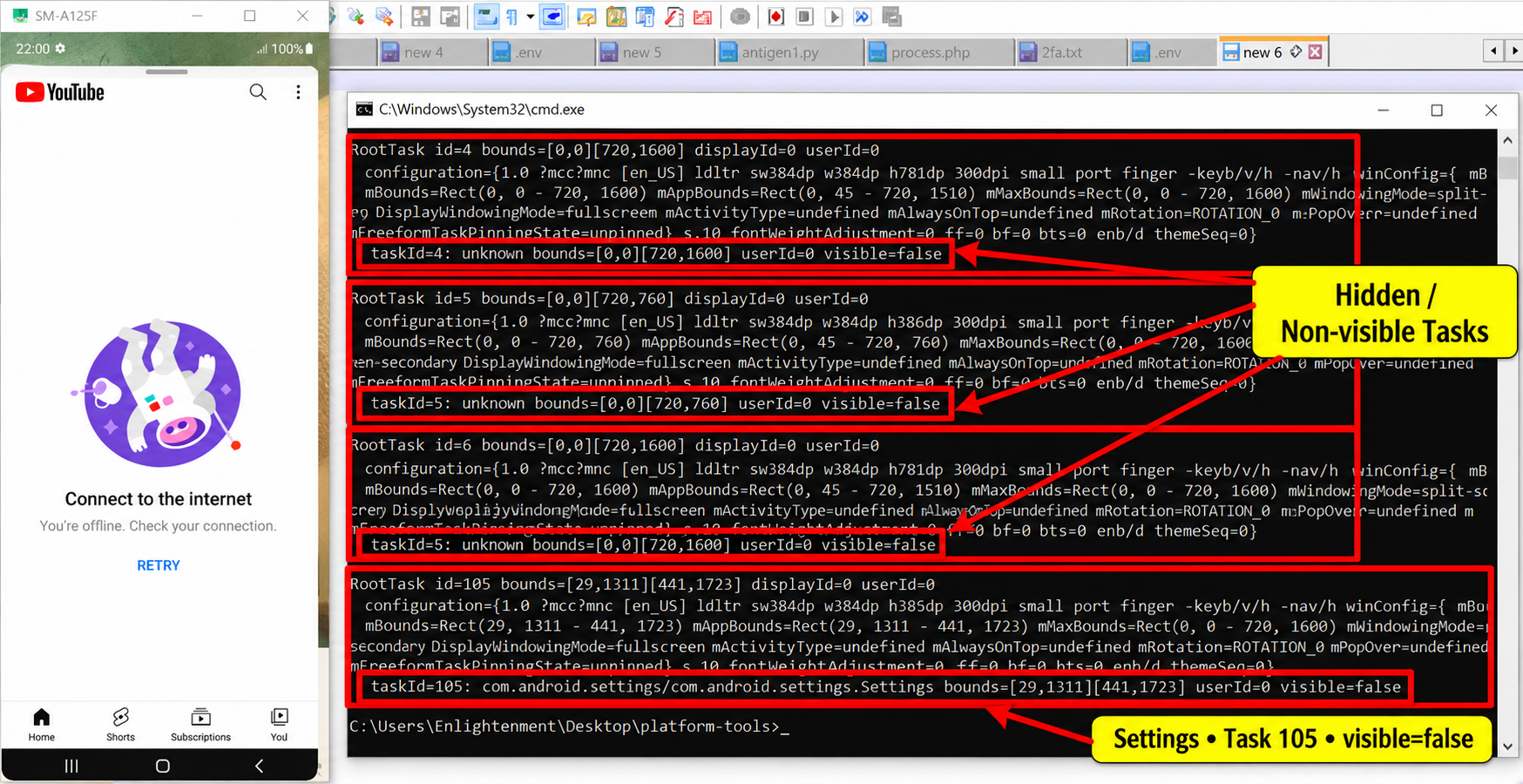
Settings had not been converted back to fullscreen or destroyed. It was still a freeform task, but Android now reported:
Settings
mWindowingMode=freeform
mAlwaysOnTop=off
visible=false
This changed my understanding of Samsung’s five-window restriction.
The Galaxy A12 was capable of maintaining more than five freeform tasks. The restriction I was seeing appeared to concern how many of those freeform windows could remain visible simultaneously.
In my test, six freeform tasks existed, but only five had visible=true. When YouTube became visible, Settings remained in the task list as a freeform task but changed to visible=false.
scrcpy gave me the visual side of the evidence. I could see YouTube and the other floating applications on the display while Settings was no longer among the visible floating windows.
9. Confirming That ADB Task Resizing Actually Worked
With the applications finally running in genuine freeform mode, I returned to the resizing question.
Earlier, I had tried resizing Settings while Settings was already hidden. Looking at another application on the phone and expecting it to change obviously did not prove anything.
I therefore tested the resize command on the currently visible YouTube task.
At that point YouTube was task 117 and its bounds were:
[0,65][684,1585]I tried:
adb shell am task resize 117 0 45 360 785scrcpy immediately showed YouTube becoming much smaller, proving that the resize operation was actually taking effect.
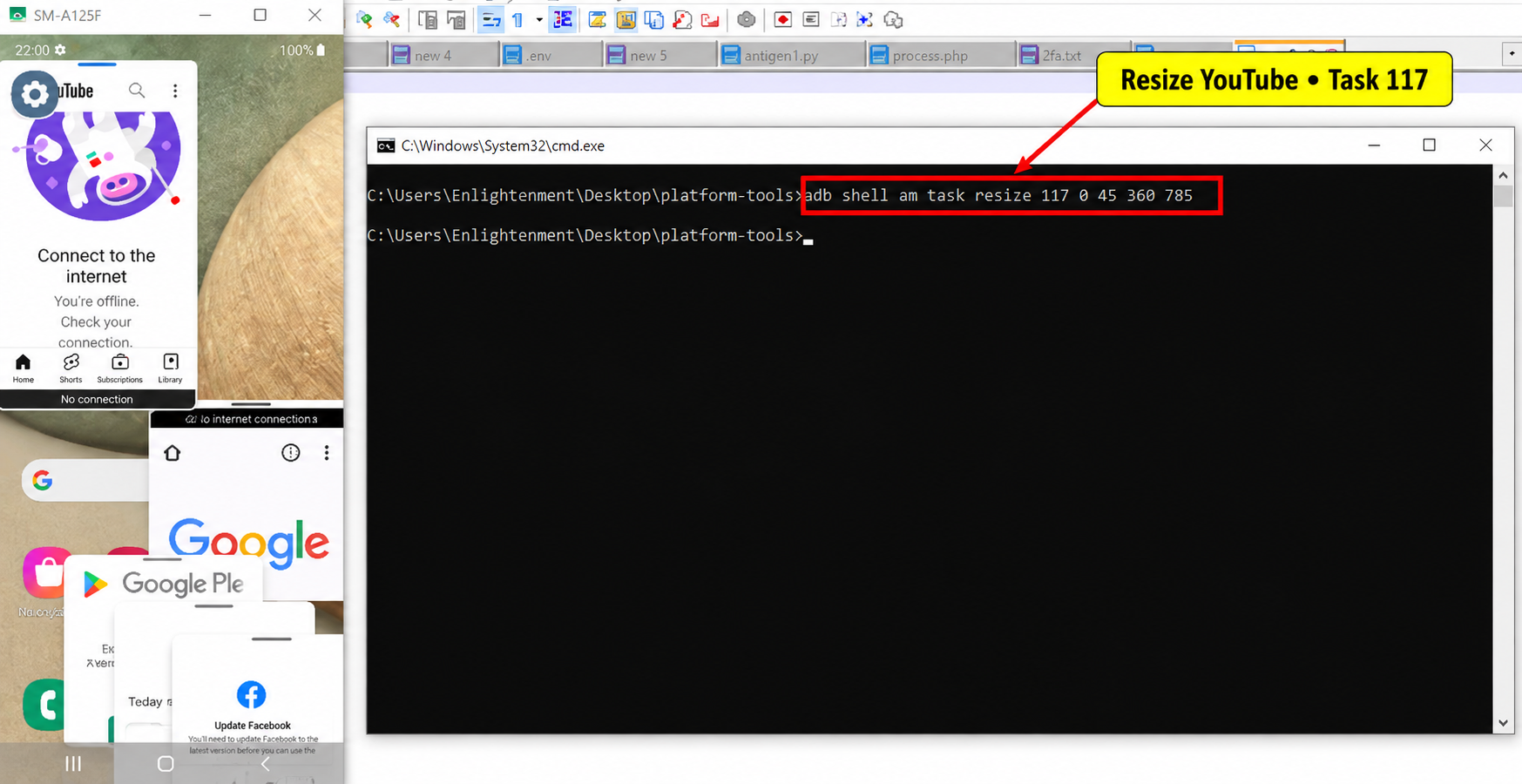
However, Android did not use the exact width I had requested.
I requested:
[0,45][360,785]but am stack list reported:
[0,45][412,785]The resize command was therefore working, but Android was enforcing a larger minimum freeform width at the current 300 DPI density.
This explained why simply dividing the 720-pixel-wide display into three 240-pixel columns was not going to work at 300 DPI.
10. Changing the Logical Density to 160 DPI
The minimum window width gave me a concrete reason to revisit Android’s logical display density.
I changed the logical density to 160 DPI:
adb shell wm density 160I verified the change:
adb shell wm densityAndroid returned:
Physical density: 300
Override density: 160
The physical display had obviously not changed. Android was applying a logical density override.
I then tried something that Android had effectively prevented at 300 DPI: making the YouTube window only 240 pixels wide.
adb shell am task resize 117 0 45 240 785This time Android accepted the requested rectangle exactly.
taskId=117
bounds=[0,45][240,785]
mWindowingMode=freeform
visible=true
160dpi
scrcpy confirmed the result visually. YouTube was now a narrow freeform window occupying the left side of the screen.
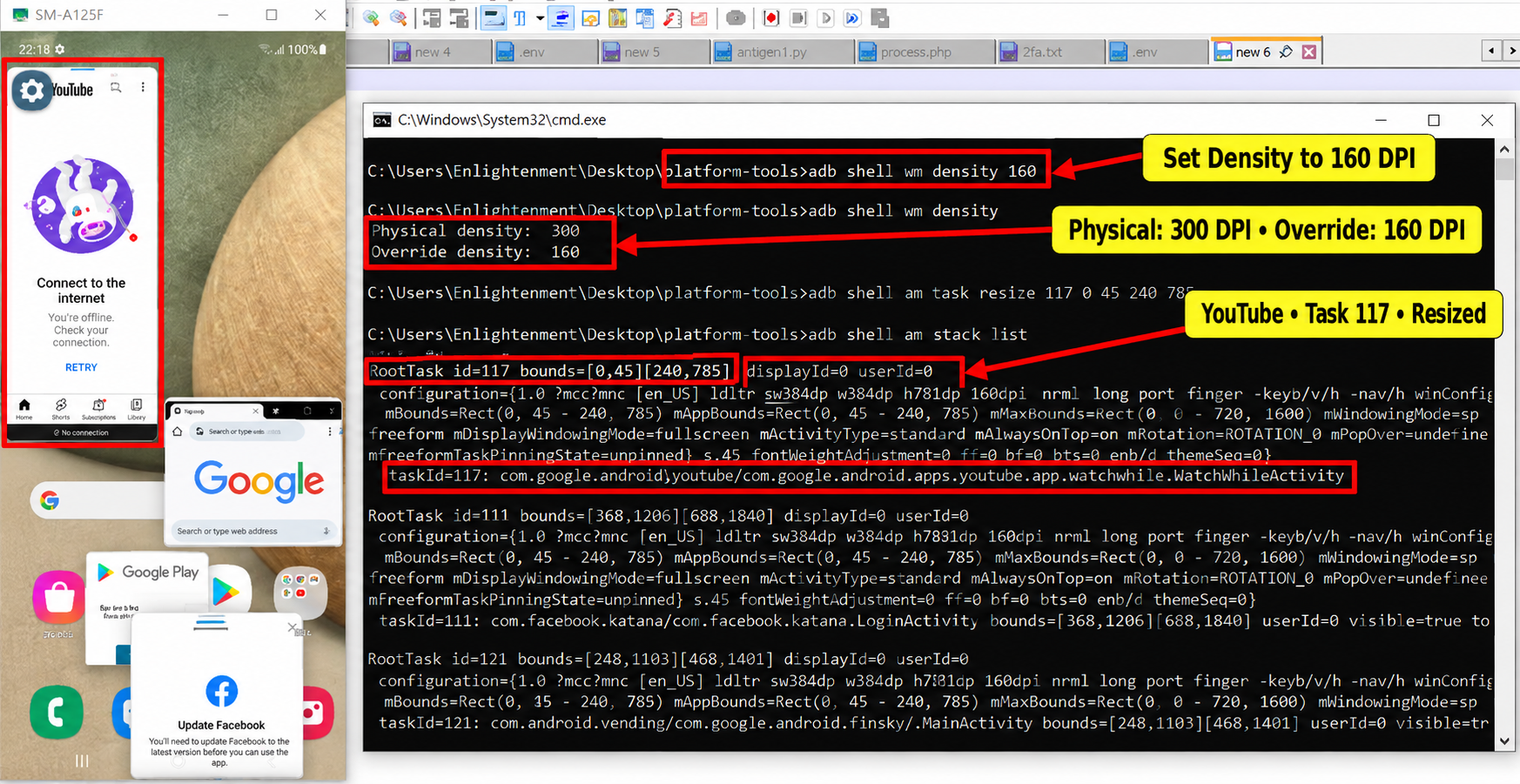
This was an important breakthrough. At 300 DPI, Android had expanded my requested narrow window to satisfy its minimum size. At 160 DPI, it accepted the 240-pixel width I needed for three equal columns across the 720-pixel display.
The density override can later be removed with:
adb shell wm density reset11. Building a Clean Five-Window Grid
Now I finally had the pieces I needed to build a proper layout.
Samsung was keeping five freeform windows visible, so instead of continuing to force a six-window layout that the phone would not display simultaneously, I arranged the five visible applications into a three-over-two grid.
The target became:
+---------+---------+---------+
| YouTube | Chrome  | Gallery |
|  240px  |  240px  |  240px |
+---------+---------+---------+
|      Play Store   | Facebook |
|       360px       |  360px   |
+-------------------+-----------+
Before resizing, I checked the task IDs again because some of them had changed as applications were recreated.
The five visible freeform applications were now:
YouTube     taskId=117
Chrome      taskId=118
Gallery     taskId=121
Play Store  taskId=120
Facebook    taskId=111
I then issued the five resize commands:
adb shell am task resize 117 0 45 240 785
adb shell am task resize 118 240 45 480 785
adb shell am task resize 121 480 45 720 785
adb shell am task resize 120 0 785 360 1525
adb shell am task resize 111 360 785 720 1525
This time Android accepted the requested bounds exactly.
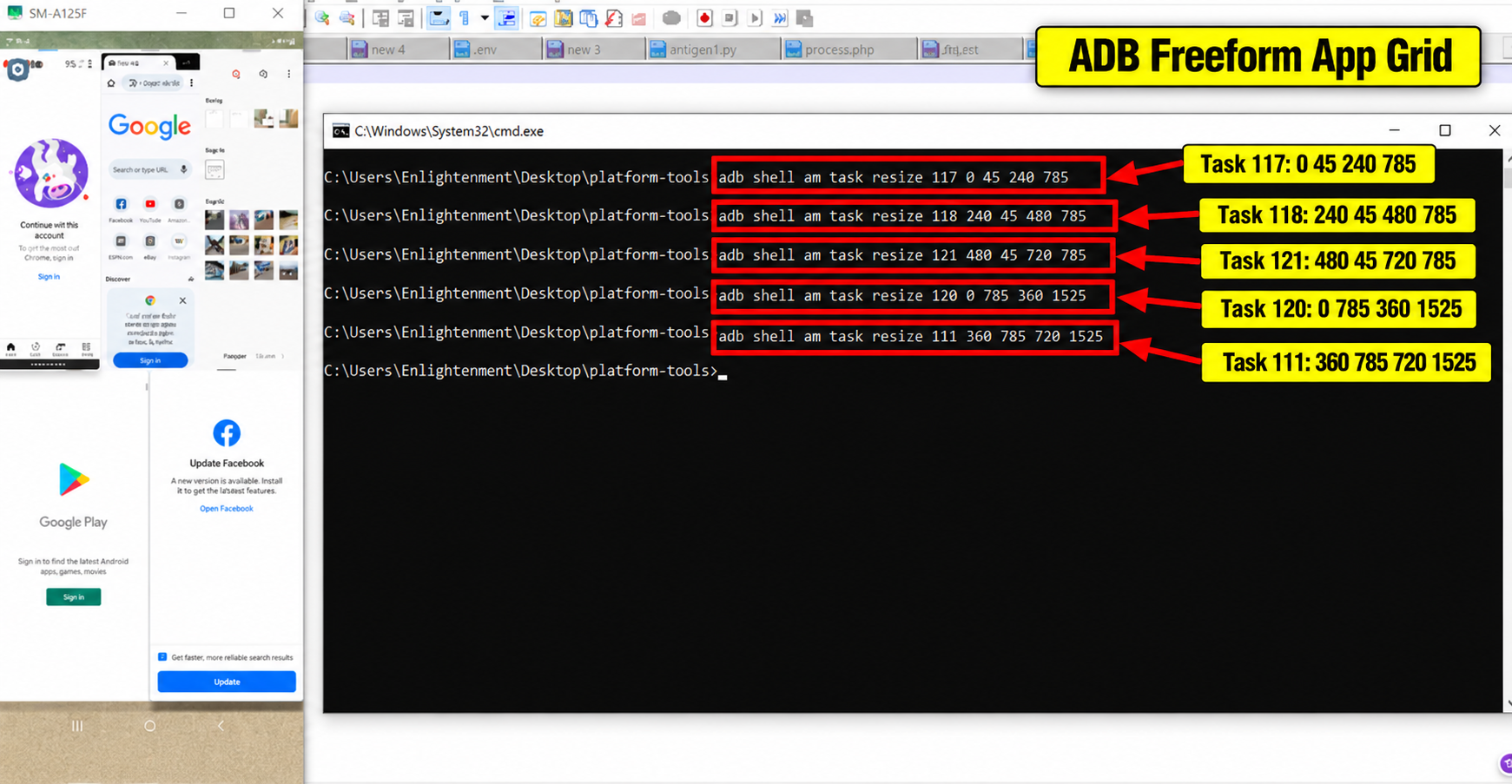
The resulting task information showed:
YouTube
taskId=117
bounds=[0,45][240,785]
freeform
visible=true

Chrome
taskId=118
bounds=[240,45][480,785]
freeform
visible=true

Gallery
taskId=121
bounds=[480,45][720,785]
freeform
visible=true

Play Store
taskId=120
bounds=[0,785][360,1525]
freeform
visible=true

Facebook
taskId=111
bounds=[360,785][720,1525]
freeform
visible=true
The top row now consisted of three 240-pixel-wide windows covering the entire 720-pixel width, while the bottom row consisted of two 360-pixel-wide windows.
All five tasks were reported as:
mWindowingMode=freeform
mAlwaysOnTop=on
visible=true
This was the first point in the experiment where I had a clean, deliberate multi-window arrangement created through ADB rather than a collection of overlapping floating windows.
12. What Happened to the Sixth Window?
Settings had not disappeared from Android’s task system.
It remained task 105 and was still reported as a freeform task.
However, after the other five floating windows became visible, Settings showed:
taskId=105
mWindowingMode=freeform
mAlwaysOnTop=off
visible=false
This was an important distinction.
The Galaxy A12 was not limited to having only five freeform tasks in existence. I had six freeform tasks. What Samsung appeared to limit was the number of freeform windows that could remain visible simultaneously.
In my test, five were visible while the sixth remained a freeform task with visible=false.
13. Inspecting Samsung’s Multitasking State
To understand what was happening behind the interface, I also inspected Samsung’s multitasking information:
adb shell dumpsys activity multitaskingI continued using:
adb shell am stack listThe task information exposed useful properties such as task IDs, bounds, windowing modes, visibility and the always-on-top state.
A visible floating application could show:
mWindowingMode=freeform
mAlwaysOnTop=on
visible=true
Settings demonstrated the other state:
mWindowingMode=freeform
mAlwaysOnTop=off
visible=false
This helped me distinguish between four things that initially looked similar:
- launching an application;
- Android maintaining a task for that application;
- the task running in freeform mode; and
- the freeform window actually being visible.
They are not necessarily the same thing.
14. Looking Inside Samsung’s Framework
The five-visible-window behavior made me curious about where Samsung might be controlling the number of visible freeform windows.
I created a separate folder for the framework investigation and pulled Samsung’s services.jar directly from the Galaxy A12:
mkdir samsung-framework
adb pull /system/framework/services.jar samsung-framework\services.jar
cd samsung-framework
I confirmed that the file had been copied successfully:
dir services.jarBefore extracting anything, I checked which DEX files were stored inside the JAR:
tar -tf services.jar | findstr /i "classes"The archive contained three DEX files:
classes.dex
classes2.dex
classes3.dex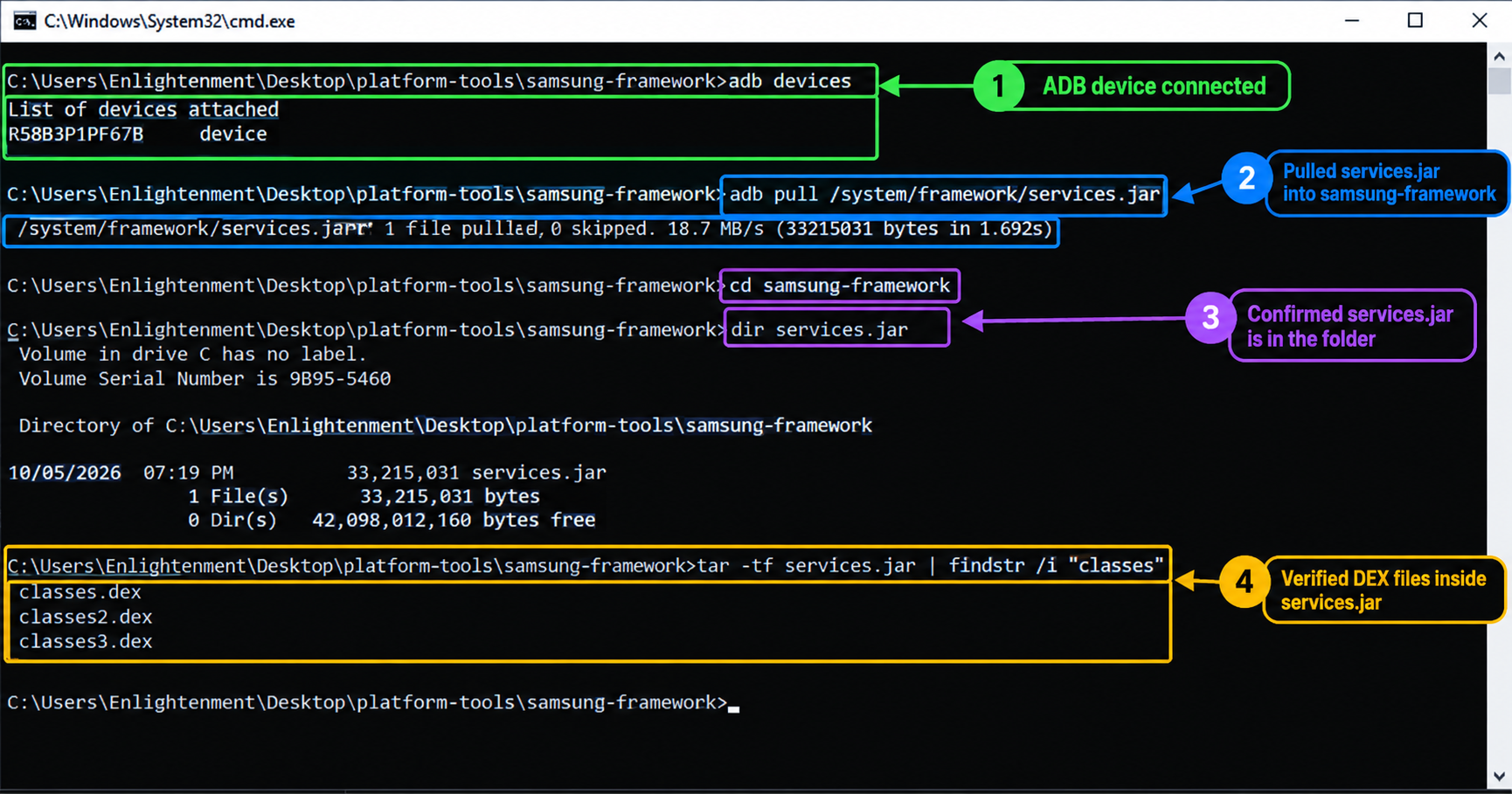
I extracted all three so that I could search them individually:
tar -xf services.jar classes.dex classes2.dex classes3.dexI verified that the files had been extracted:
dir classes*.dexI then searched all three DEX files for FreeformController:
findstr /s /i /m "FreeformController" classes.dex classes2.dex classes3.dexThe search returned:
classes3.dexThis told me that the DEX file containing the matching FreeformController string was classes3.dex. I then searched that file for several names related to Samsung’s handling of visible freeform windows:
findstr /i /m "MAX_FREEFORM_DEFAULT_CNT" classes3.dex
findstr /i /m "getMaxVisibleFreeformCntLocked" classes3.dex
findstr /i /m "setMaxVisibleFreeformCount" classes3.dex
Each search returned:
classes3.dexSo the strings I confirmed in classes3.dex included:
FreeformController
MAX_FREEFORM_DEFAULT_CNT
getMaxVisibleFreeformCntLocked
setMaxVisibleFreeformCount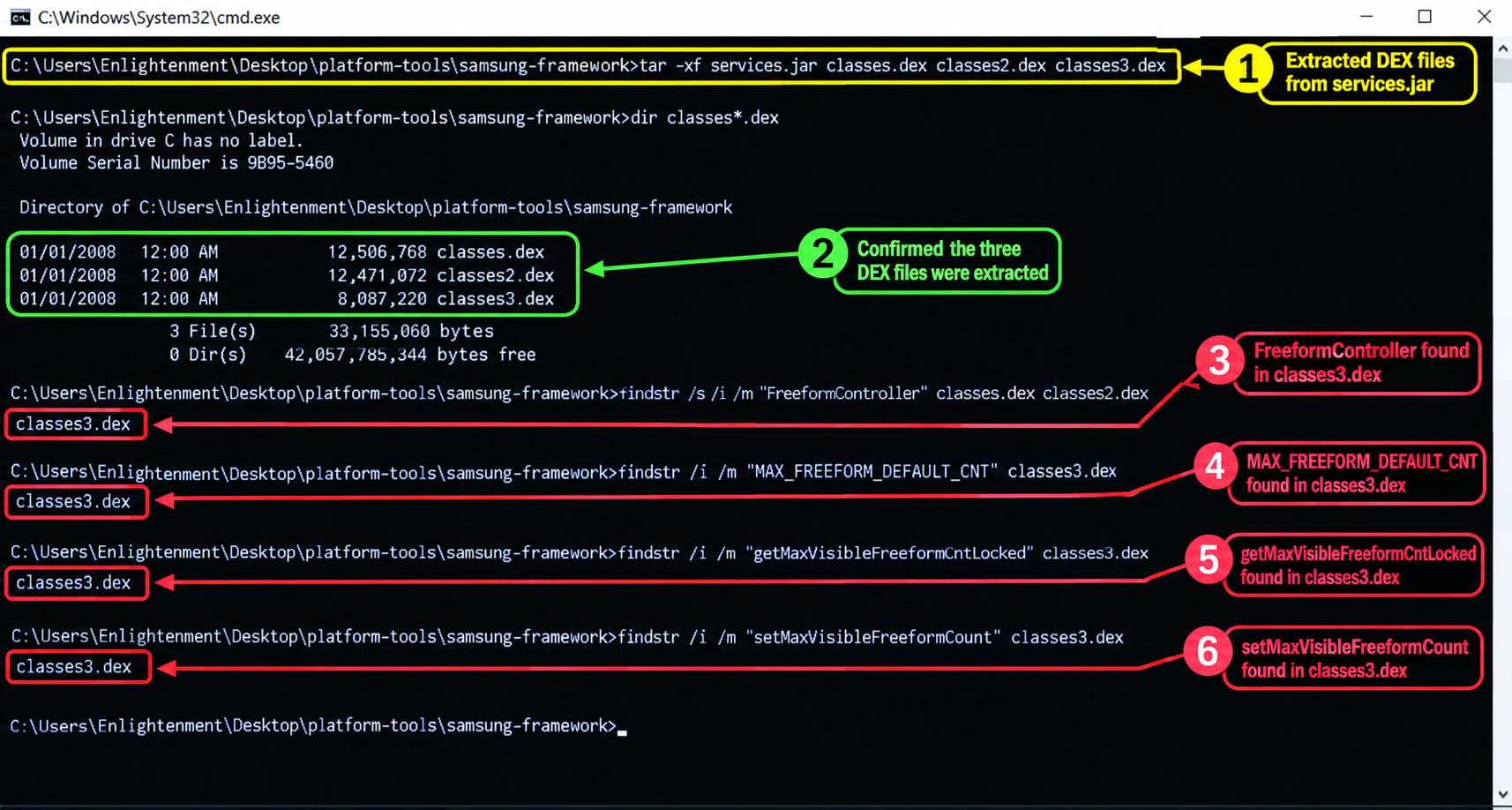
Those names were particularly interesting because they lined up with the behavior I had observed on the phone. I had already demonstrated that six freeform tasks could exist while only five remained visible, and Samsung’s framework contained names explicitly referring to a maximum visible freeform count.
However, this search did not reveal the actual numeric value of MAX_FREEFORM_DEFAULT_CNT. It only confirmed that the string exists in classes3.dex. Likewise, finding a name such as setMaxVisibleFreeformCount does not prove that it can be called directly through ADB or that changing it would be safe.
To go further, I would need to decompile or inspect the relevant DEX bytecode and trace how Samsung’s FreeformController uses these values and methods.
What I Learned From the Experiment
The experiment started with a simple question: if the Galaxy A12 could create floating windows through its touchscreen interface, could I control those same windows from ADB?
The answer turned out to be yes, but getting there involved more than simply running a resize command.
One of the first things I learned was that launching an application does not mean it is running in freeform mode. The monkey commands successfully opened the applications, but most of their tasks remained fullscreen until I resolved their launcher activities and explicitly relaunched them with --windowingMode 5.
I also learned that the current top activity is not necessarily a component ADB can launch directly. Play Store demonstrated this when an internal non-exported activity produced a SecurityException.
YouTube added another complication because its launcher activity contained a dollar sign. Quoting the remote shell command correctly was necessary to prevent $HomeActivity from being stripped from the component name.
The resizing tests then showed that Android could enforce minimum freeform dimensions. At 300 DPI, my request for a narrower YouTube window was expanded to a width of 412 pixels.
Reducing the logical density to 160 DPI changed that. Android then accepted a 240-pixel-wide freeform window exactly, which made a three-column arrangement possible on the 720-pixel-wide display.
With the density changed and the current task IDs identified, I was finally able to arrange five visible applications into a clean 3-over-2 grid using nothing but ADB resize commands.
The biggest limitation remained Samsung’s handling of the sixth freeform task. Six freeform tasks could exist, but only five remained visible simultaneously during my test. The sixth task stayed in the task list with visible=false.
scrcpy was also invaluable throughout the experiment because it prevented me from confusing a command that returned without an error with a command that actually produced the intended visual result.
Finally, the changing task IDs reinforced why commands from one session should not simply be copied into another. Chrome, Gallery and Play Store all received different task IDs as I stopped and recreated their tasks.
Conclusion
I did not achieve the six-simultaneously-visible-window TV-style mosaic I originally set out to create, but I got much closer than my early attempts suggested was possible.
I confirmed that applications on this Samsung Galaxy A12 could be launched into genuine freeform mode from ADB when the correct launcher activity was used. I confirmed that am task resize could control the bounds of those windows, and I found that lowering the logical density to 160 DPI allowed Android to accept the narrow 240-pixel windows required for a three-column layout.
The final working arrangement contained five simultaneously visible freeform applications: YouTube, Chrome and Gallery across the top, with Play Store and Facebook across the bottom.
A sixth application, Settings, still existed as a freeform task but remained hidden with visible=false.
That means the remaining problem is no longer launching, resizing or positioning the applications. Those parts are now working.
The remaining obstacle is Samsung’s apparent five-visible-freeform-window limit.
The framework investigation has already exposed names such as FreeformController, MAX_FREEFORM_DEFAULT_CNT and getMaxVisibleFreeformCntLocked, but I have not yet traced the code far enough to identify a safe way to change the limit.
So the original six-window mosaic remains unfinished, but I now know exactly which part of the experiment is still standing in the way.
If I continue from here, the next experiment will no longer be about arranging Android windows. It will be about finding out exactly how Samsung decides that only five of those freeform windows can remain visible at once.