[Tutorial] How to Remove / Delete a Windows Service
[Tutorial] How to Remove / Delete a Windows Service

28-01-2017, 09:12 PM
After uninstalling certain programs, you might notice that the service which was created when the program was installed wasn't removed. To remove theses services, you can use either of the methods explained in the post below.
How to Delete a Windows Service Using CMD Prompt
- You'll need to verify the service name of the particular service you wish to remove.
- Navigate to Control panel > Administrative tools > services
- The Service windows should open, scroll down to the particular service you wish to remove

- Double click on the particular service and the properties window should open. Take note of the "SERVICE NAME"

- Now, we'll need to open an elevated CMD prompt, click Start Menu then type CMD > then launch CMD as admin
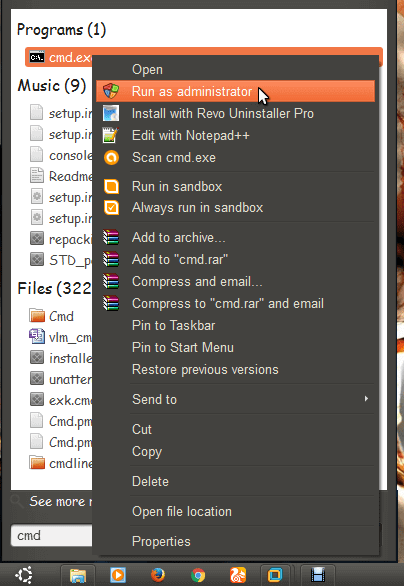
- An elevated CMD prompt window should now open

- Type in the code below then hit Enter (if the service you wish to remove doesn't have space within its service name, then don't add the parenthesis "")
Code:sc delete "service name"

- You should now get a delete service success message

- Now the service has been removed, you may need to restart your PC to verify.
How to Delete a Windows Service Using Registry Editor
- Hold the windows key then press key R (win + r). In the Run window that appears, type "regedit" then click on OK

- The Registry editor window should now open

- Navigate to HKEY_LOCAL_MACHINE\SYSTEM\CurrentControlSet\services and open the services folder by double clicking on it

- Scroll down till you locate the service you intend to remove. Right click on it and select delete.
- Now the service has been removed, but unlike method 1, you must restart your PC for the process to be complete.
Important Notice
- If you aren't not comfortable modifying anything within the registry editor, then simply use the CMD prompt method
This post was last modified: 02-07-2018, 10:31 PM by X3non.
Learn MediaTek, Unisoc / Spreadtrum (SPD) and Qualcomm Software Repairs @ https://www.hovatek.com/training
Note!
We have a reply schedule for Forum Support. Please try Private Support if you can't wait.
Users browsing this thread:
1 Guest(s)
1 Guest(s)
Users browsing this thread:
1 Guest(s)
1 Guest(s)


