After several unsuccessful attempts to obtain stable root access on my Samsung Galaxy A12 (SM-A125F), I decided to test a different question: how far could I automate a real Android application using ADB alone, without root? I chose the myMTN Ghana application and a GHS 1 Flexi Mashup purchase flow as a practical test. My goal was not to bypass Mobile Money security; it was to learn whether a Windows PowerShell script could read the application’s accessible interface, tap the correct controls, and follow a live transaction workflow with observable results.
The outcome exceeded my initial expectations. After several revisions, my script successfully launched myMTN, selected a GHS 1 Flexi Mashup bundle, chose MoMo, reached the payment screen, triggered MTN’s real payment-authorization dialog, submitted a deliberately incorrect test PIN once, detected the subsequent Yes/No prompt and sent my chosen No response. The phone ultimately displayed “Incorrect Mobile Money PIN”. No successful charge or completed subscription was demonstrated.
Scope of this result: This is a documented UI-automation experiment on my own device and account, not a claim of successful payment, PIN bypass, or access to anyone else’s MoMo account. The network and application still enforced their own authorization logic. I used an incorrect PIN intentionally, but the test does establish that a correct PIN would have completed the purchase.
1. Why I Tried ADB Instead of Rooting Again
In my earlier Galaxy A12 investigations, I explored boot image patching, DFT Pro, vbmeta modifications and firmware recovery. Those experiments taught me the difference between a tool reporting a successful operation and Android actually behaving as expected. This time I wanted a lower-risk approach: use the Android Debug Bridge (ADB) on a normally booted device with USB debugging authorized.
ADB can launch activities, send key events, tap screen coordinates and request a UI hierarchy from Android’s accessibility/UI testing infrastructure. That does not grant root permission, but it may be enough to automate ordinary visible application controls. I used Windows PowerShell, Google’s platform-tools and a physical Samsung Galaxy A12 SM-A125F running Android 12. The device was connected over USB and I explicitly authorized USB debugging.
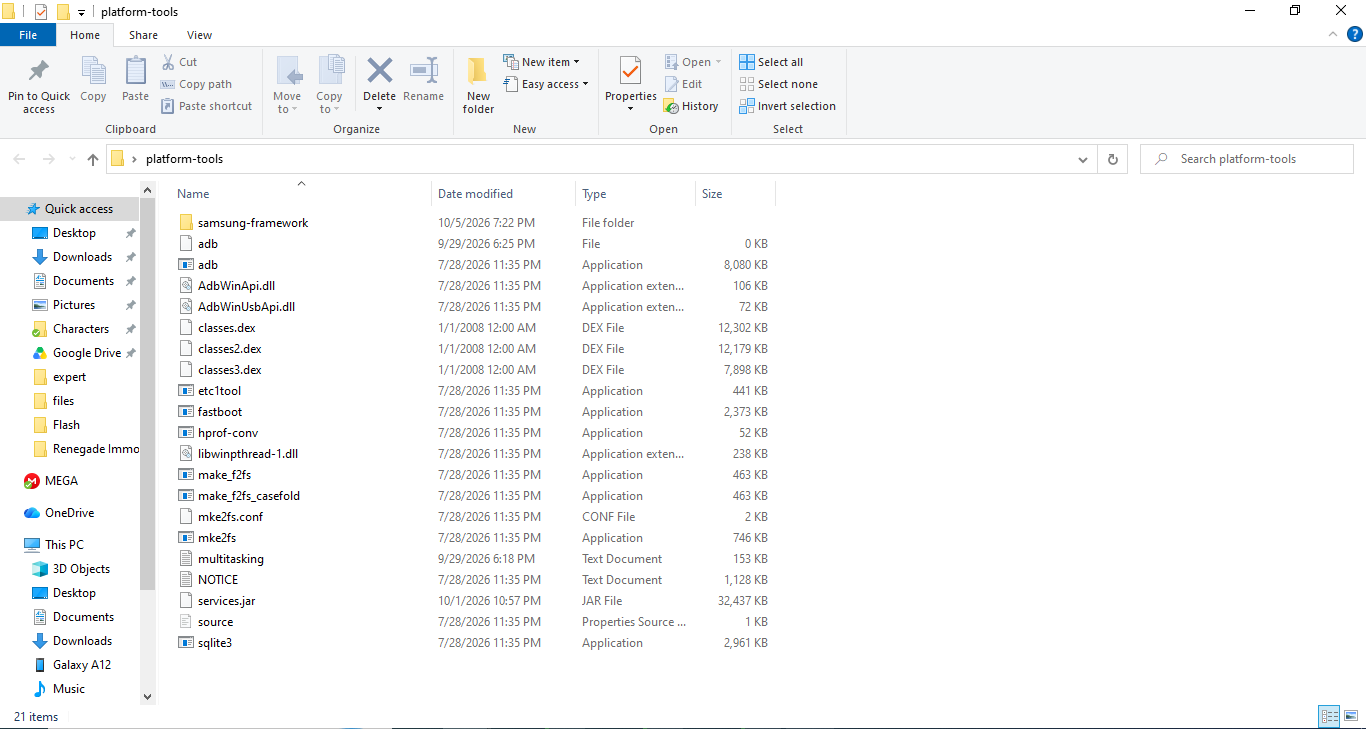
Figure 01. Windows platform-tools folder containing adb.exe before testing (Captured 2026-11-25 at 11:35)
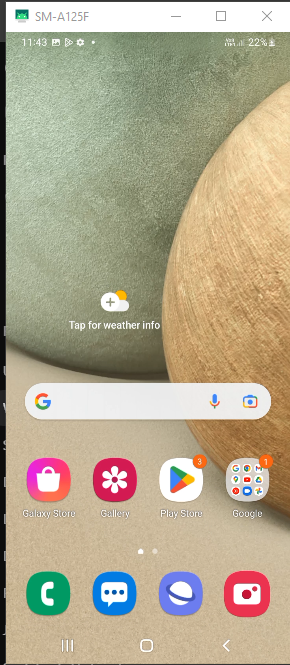
Figure 02. scrcpy showing the connected Samsung Galaxy A12 before launching myMTN (Captured 2026-11-25 at 11:43)
2. Starting With MTN Pulse USSD
My first test was the MTN Pulse USSD menu, *567#. I opened the dialer with the encoded USSD string and initiated the call using ADB:
.\adb.exe shell am start -a android.intent.action.DIAL -d "tel:%2A567%23"
.\adb.exe shell input keyevent 5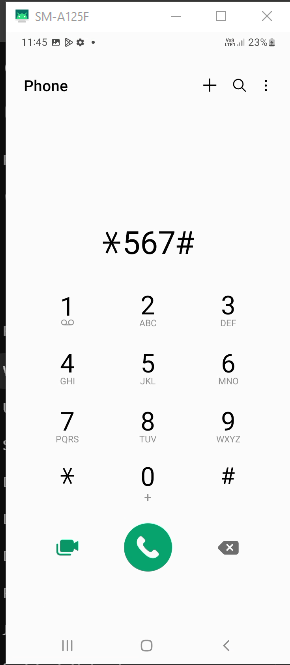
Figure 03. Samsung dialer populated with MTN Pulse USSD *567# (Captured 2026-11-25 at 11:45)
The first prompt invited me to proceed to a bundle purchase or select 99 for more options. I submitted a menu choice with:
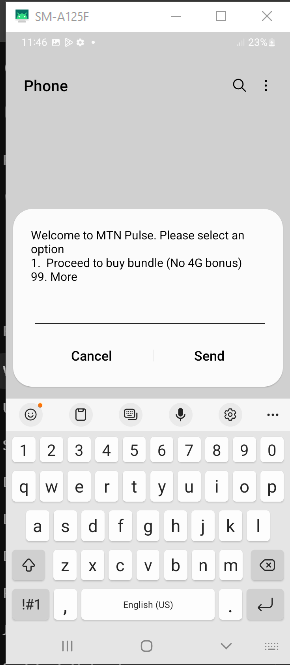
Figure 04. MTN Pulse initial USSD menu offering 1 and 99 (Captured 2026-11-25 at 11:46)
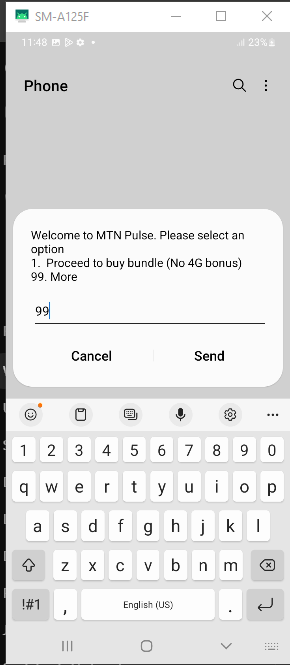
Figure 05. Next MTN network menu after submitting a USSD option (Captured 2026-11-25 at 11:48)
.\adb.exe shell input text 99
.\adb.exe shell input keyevent 66
Reading the response through Android’s UI hierarchy
The response was a real, interactive USSD dialog. To read its contents, I dumped the current UI tree and transferred the XML to Windows:
.\adb.exe shell uiautomator dump /sdcard/window.xml
.\adb.exe pull /sdcard/window.xml .\mtn-menu.xml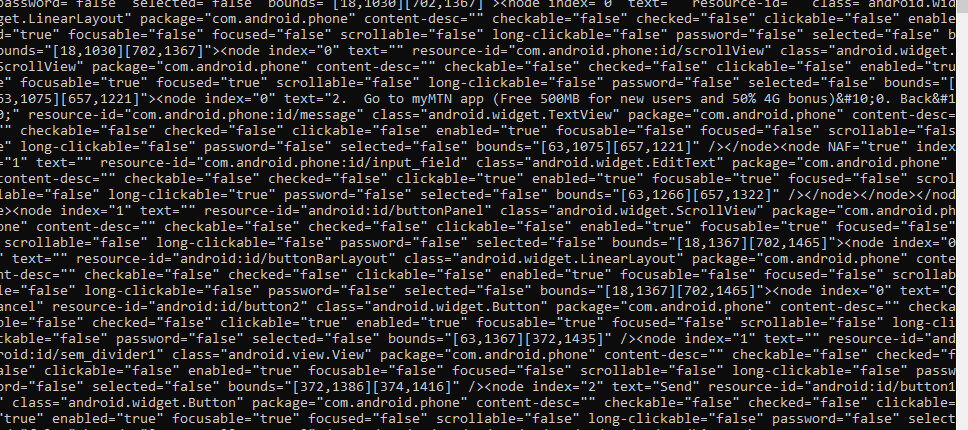
Figure 06. PowerShell UIAutomator XML dump used to inspect the MTN menu (Captured 2026-11-25 at 11:53)
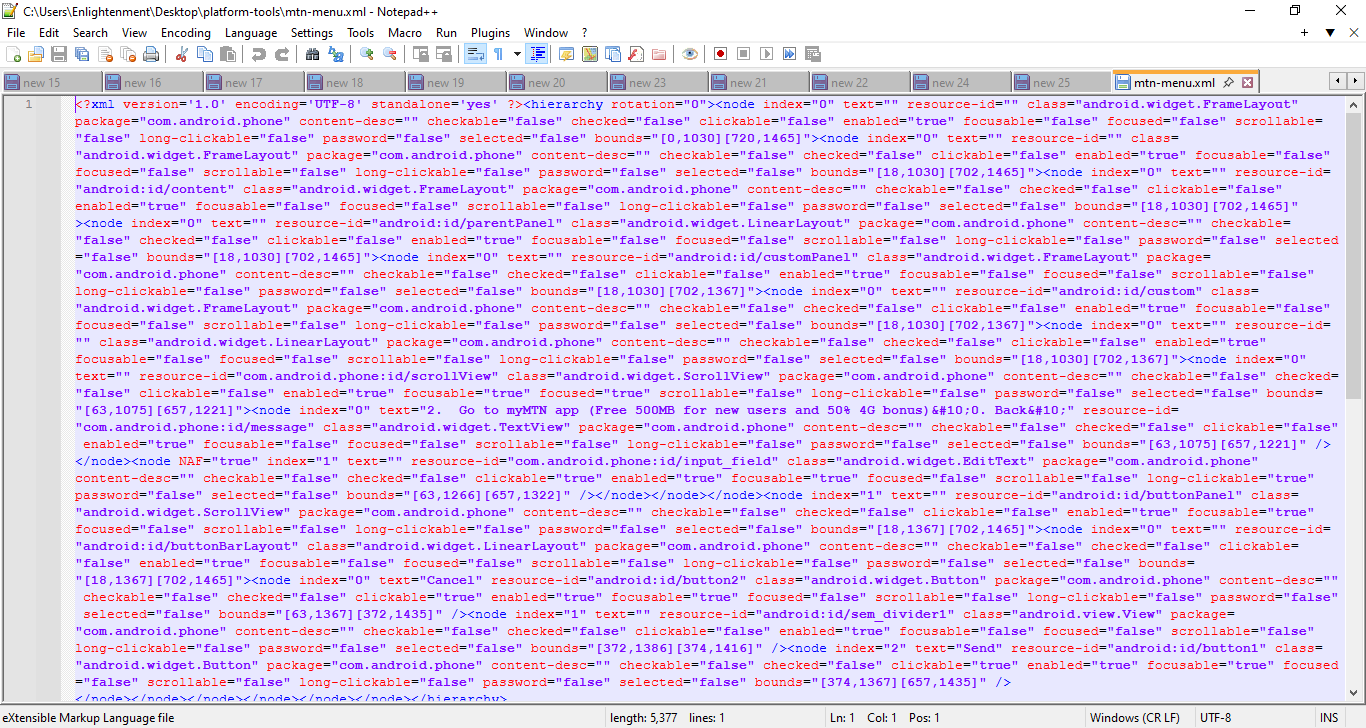
Figure 07. Android phone UI hierarchy XML opened in Notepad++ exposing dialog resource IDs (Captured 2026-11-25 at 11:57)
The XML exposed the dialog text under com.android.phone:id/message, its input field under com.android.phone:id/input_field, and the Send and Cancel buttons. That was my first useful result: I could inspect and respond to the live MTN menu using ADB without root. I developed and tested several revisions of this early USSD automation before moving to the app itself. The following captures show the early script errors, the successful USSD session, the interactive numbered-choice checks and the follow-up menu. They are not screenshots of an automatic purchase.
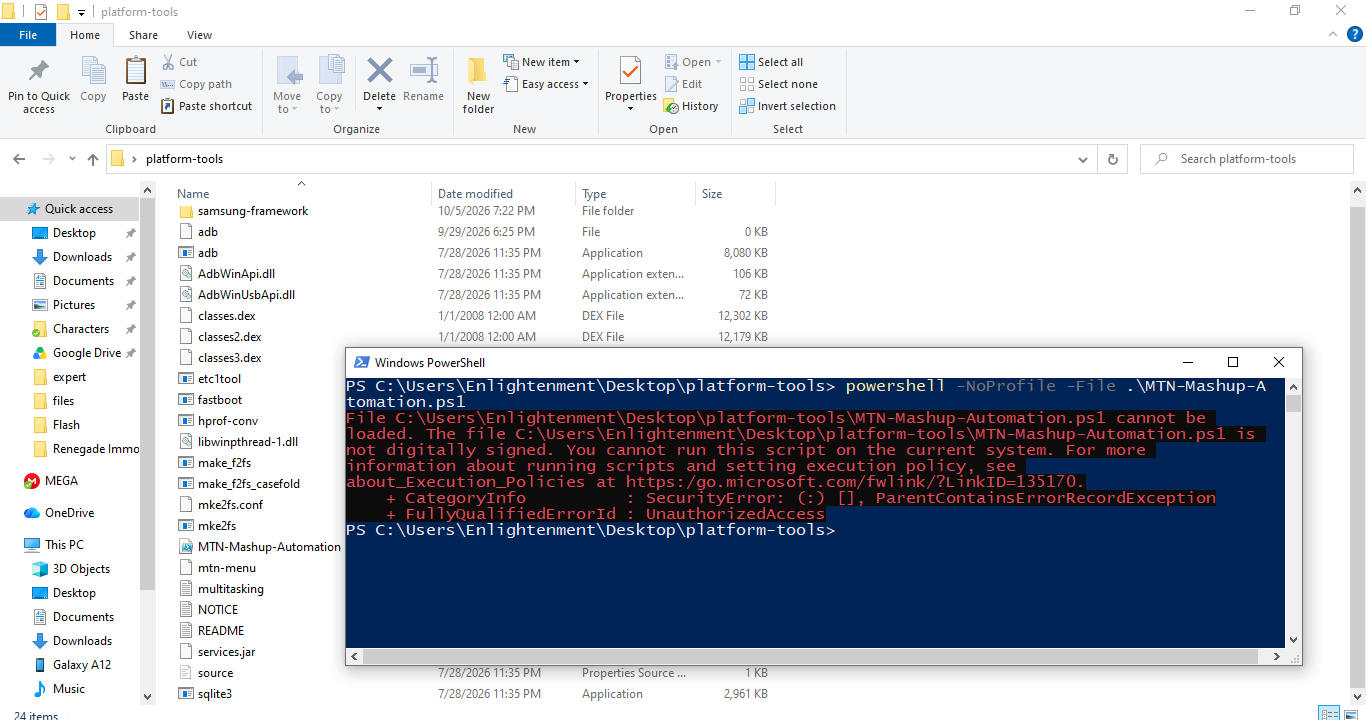
Figure 08. Early PowerShell script failure before the tested USSD revision (Captured 2026-11-25 at 12:04)
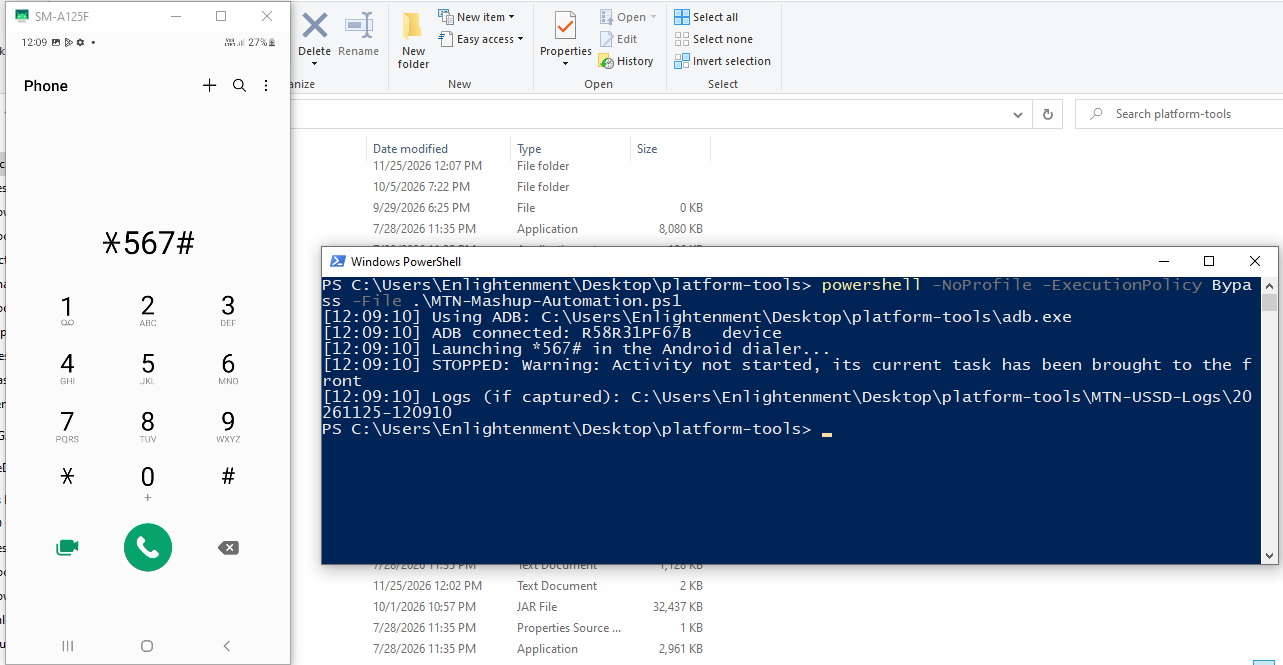
Figure 09. USSD session running with ADB and PowerShell (Captured 2026-11-25 at 12:09)
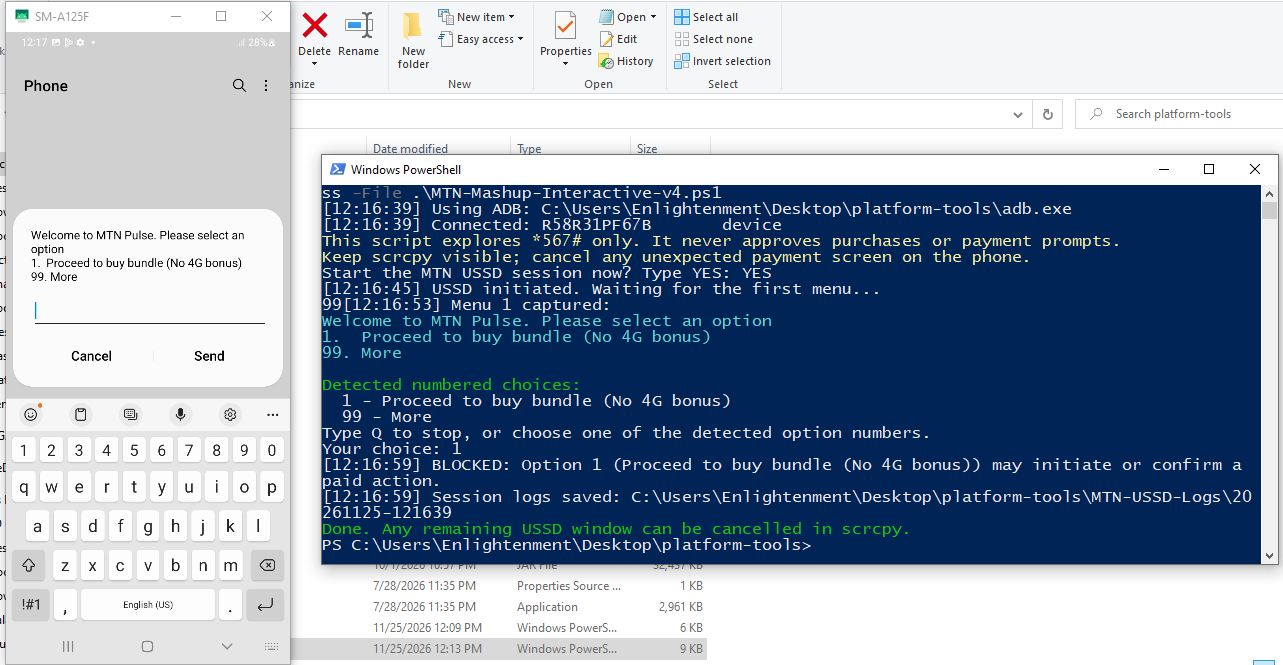
Figure 10. Interactive USSD script showing actual menu choices and purchase guard (Captured 2026-11-25 at 12:17)
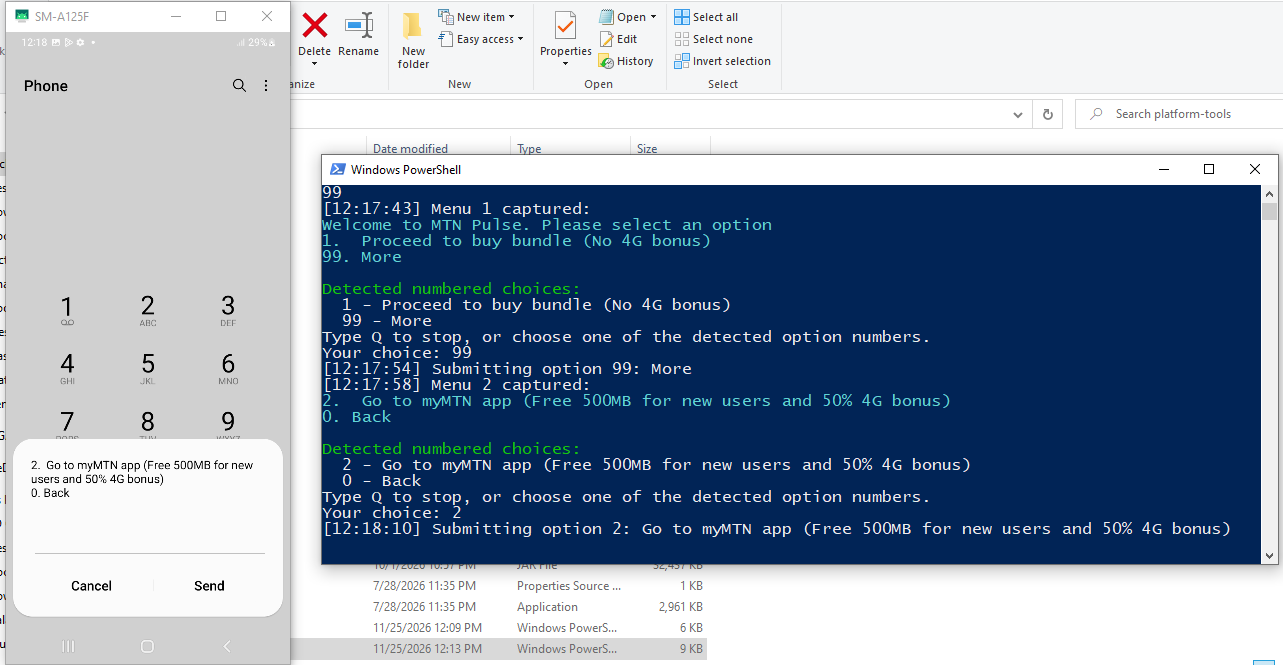
Figure 11. MTN Pulse USSD automation interacting with a numbered network menu (Captured 2026-11-25 at 12:18)
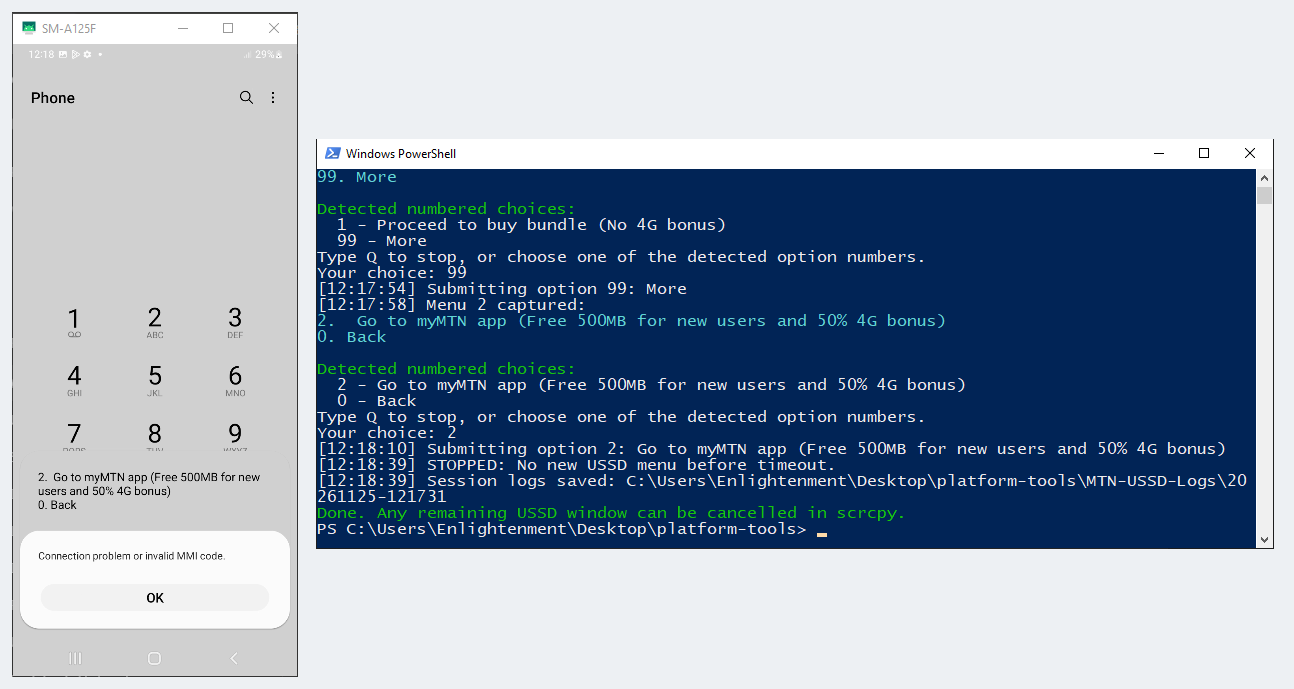
Figure 12. Interactive MTN Pulse flow revealing the app-based bundle option (Captured 2026-11-25 at 12:19)
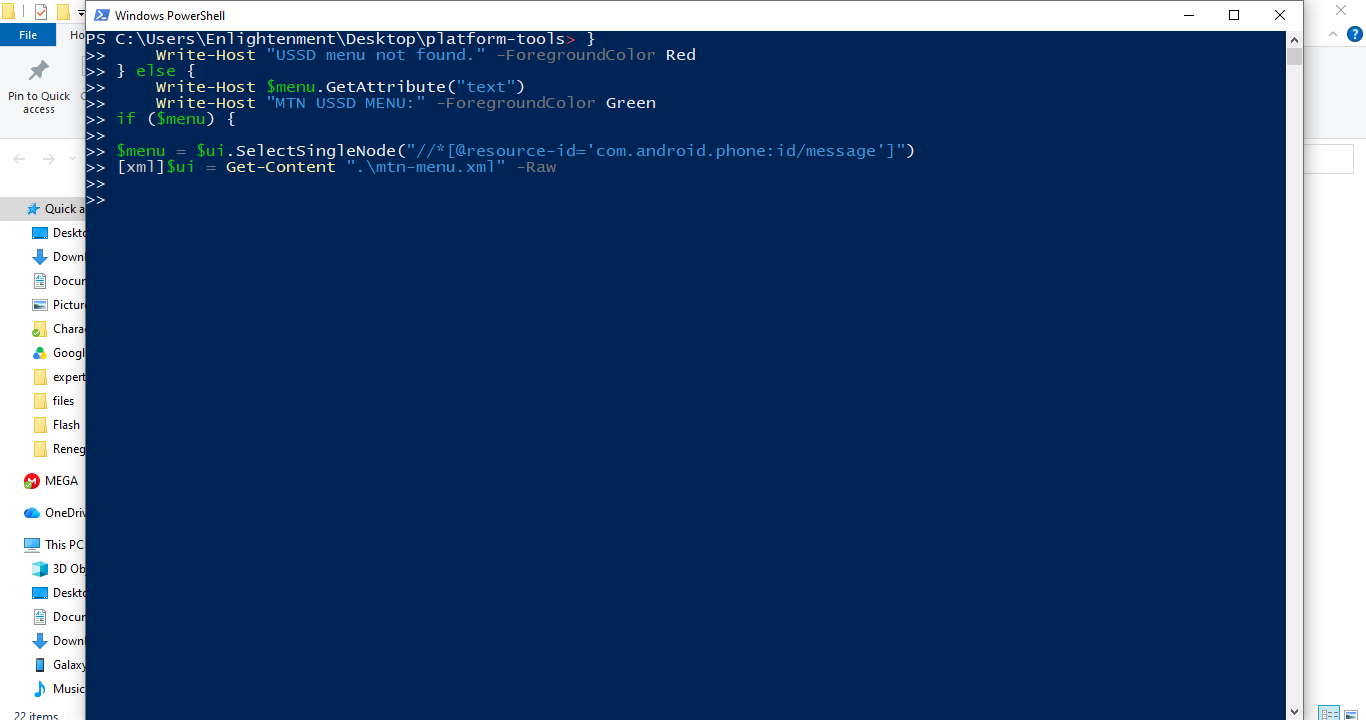
Figure 13. PowerShell parsing Android XML to extract live USSD menu text (Captured 2026-11-25 at 11:58)
3. The Black-Screen Problem With myMTN and scrcpy
I launched myMTN with ADB using its package name, com.mtngh.mymtn:
.\adb.exe shell monkey -p com.mtngh.mymtn -c android.intent.category.LAUNCHER 1At this point, I encountered a confusing problem: the myMTN window appeared completely black in scrcpy, while the application remained visible on the physical phone. ADB-based screenshots were also black. That behavior is consistent with a protected display surface, although I did not independently verify the precise implementation. It meant I could not rely on screen images to guide the automation.
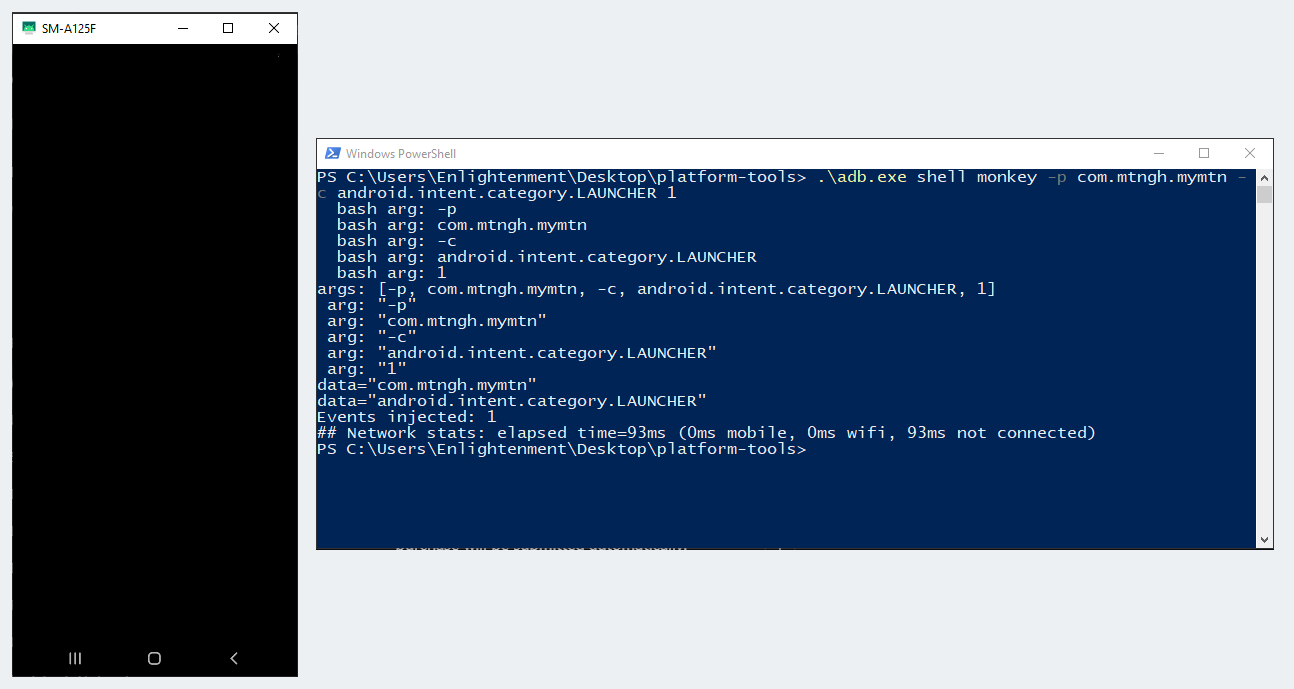
Figure 14. myMTN appears as a black screen in scrcpy even though the app is active (Captured 2026-11-25 at 12:22)
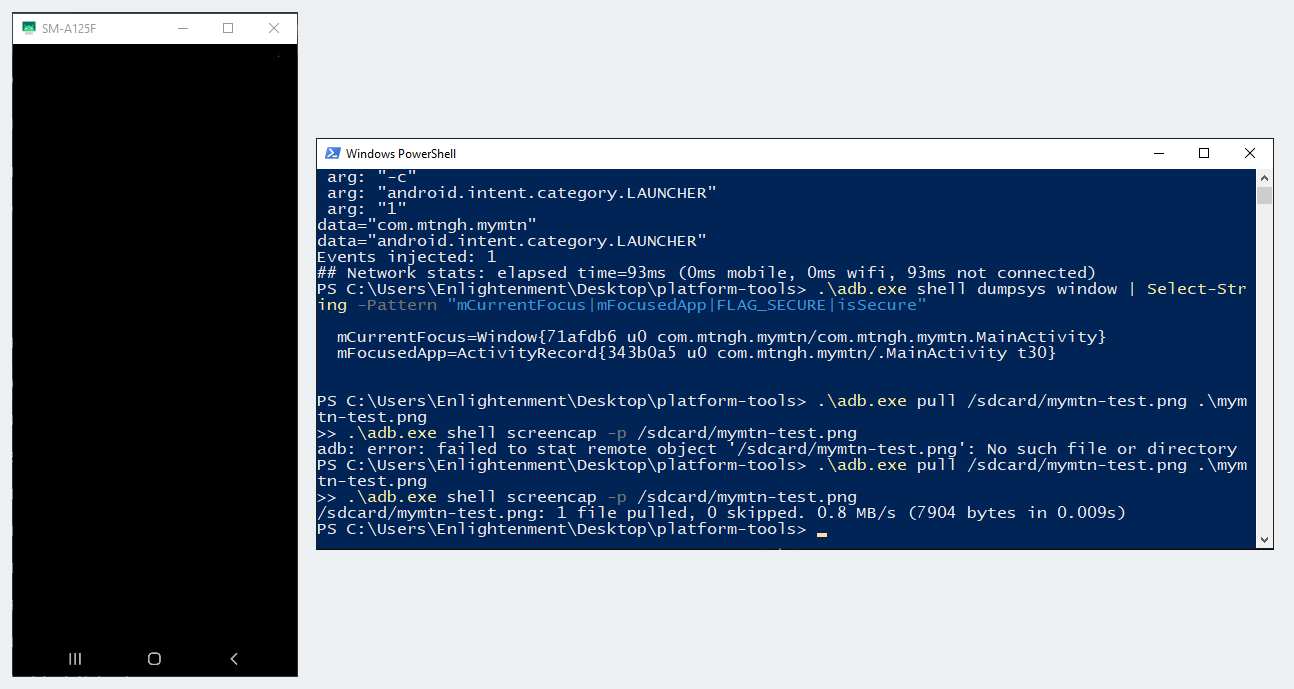
Figure 15. ADB confirms myMTN MainActivity is in the foreground while scrcpy remains black (Captured 2026-11-25 at 12:24)
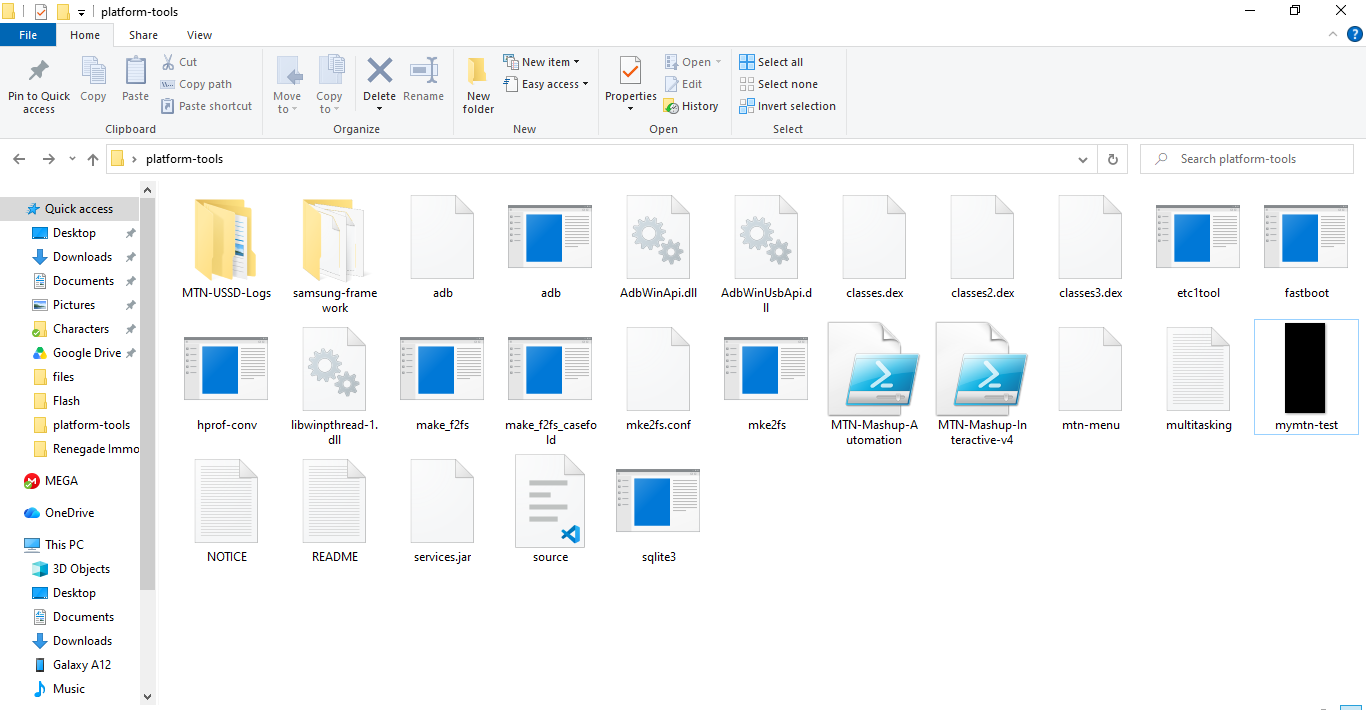
Figure 16. Windows folder containing the black ADB screenshot produced while myMTN is active (Captured 2026-11-25 at 12:25)
Fortunately, uiautomator dump still returned meaningful elements from the application’s interface. It included button labels, content descriptions, enabled states and element bounds. For example, the Home screen exposed navigation controls such as Home and Buy. I could identify a clickable element by its content description and calculate the center of its reported bounds, rather than depending entirely on hard-coded taps.
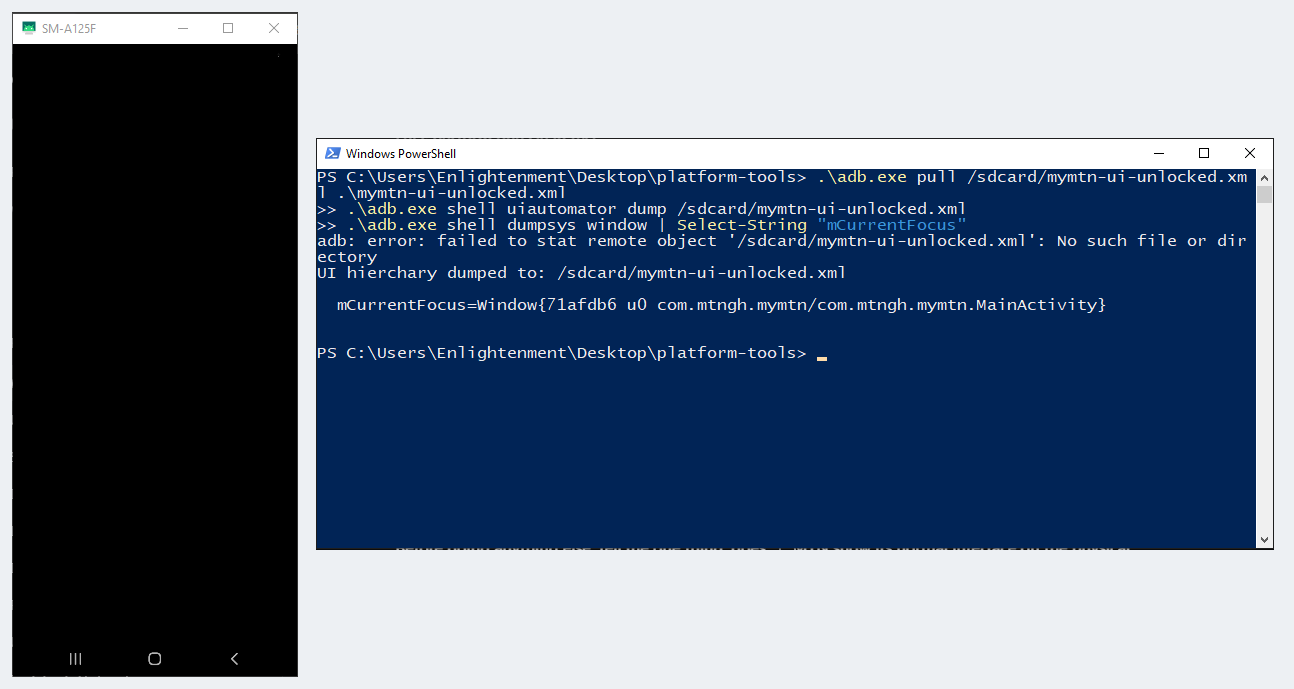
Figure 17. UIAutomator reads myMTN Android interface hierarchy despite black screencast (Captured 2026-11-25 at 12:28)
Technical distinction: A black scrcpy window does not automatically mean the application cannot be controlled using ADB. Screen capture and UI hierarchy inspection are different capabilities. Equally, the fact that the UI tree was readable in my test does not mean every protected app will expose the same information.
4. Finding the Real Route to Flexi Mashup
I initially thought the Home page’s Mashup shortcut would save time. It did not: that shortcut opened MTN Pulse rather than the purchase screen I needed. I returned to the verified route through the app’s bottom Buy tab. That small correction matters because two controls with similar labels may lead to different destinations.
The route I successfully tested was:
- Open myMTN and select Buy.
- Select Mashup from the Buy screen.
- Open Flexi Mashup Bundles.
- Enter GHS 1 in the amount field.
- Select the option showing 50.89 MB data and 0 minutes in this session.
- Keep Myself as the recipient.
- Switch the payment method from Airtime to MoMo.
- Continue to Review and Pay.
There was another practical obstacle: adb shell input text 1 did not work reliably in the amount field, but sending the Android key event KEYCODE_1 did. After entering the amount, the screen displayed the expected 50.89 MB option and enabled the Continue button.
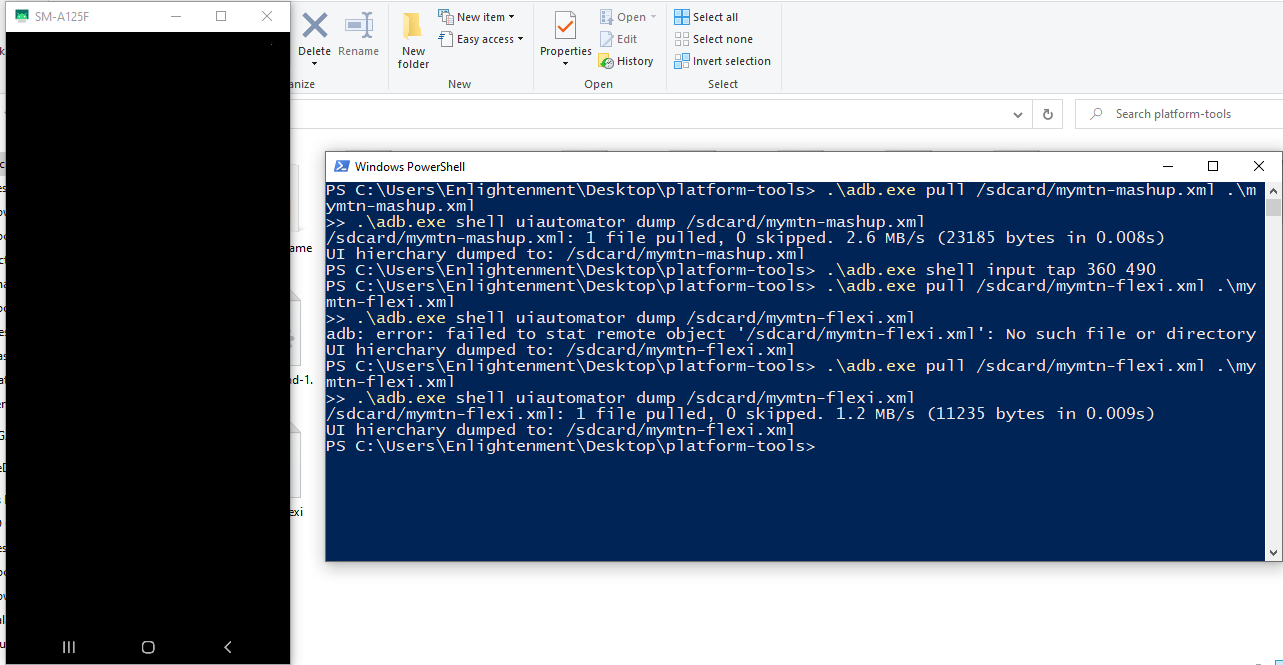
Figure 18. PowerShell and myMTN black screencast during form entry debugging (Captured 2026-11-25 at 12:38)
.\adb.exe shell input keyevent KEYCODE_1This is one reason I tested each step against fresh UI XML rather than assuming that commands which work in one Android screen will behave identically in another.
5. Why the Early Scripts Kept Stopping
The PowerShell scripts needed a number of corrections before they became reliable. I retained representative failure captures because the final working code is easier to evaluate when the path to the fix is visible. Early revisions encountered PowerShell variable errors, ordinary ADB output being treated as a failure, and a homepage detector that sometimes reported the navigation was missing when the app was actually displaying it. I also observed a Location request timed out toast on the phone, but later XML inspection showed that the Home and Buy controls were available. I therefore did not treat the location toast as the proven cause of the automation failure.
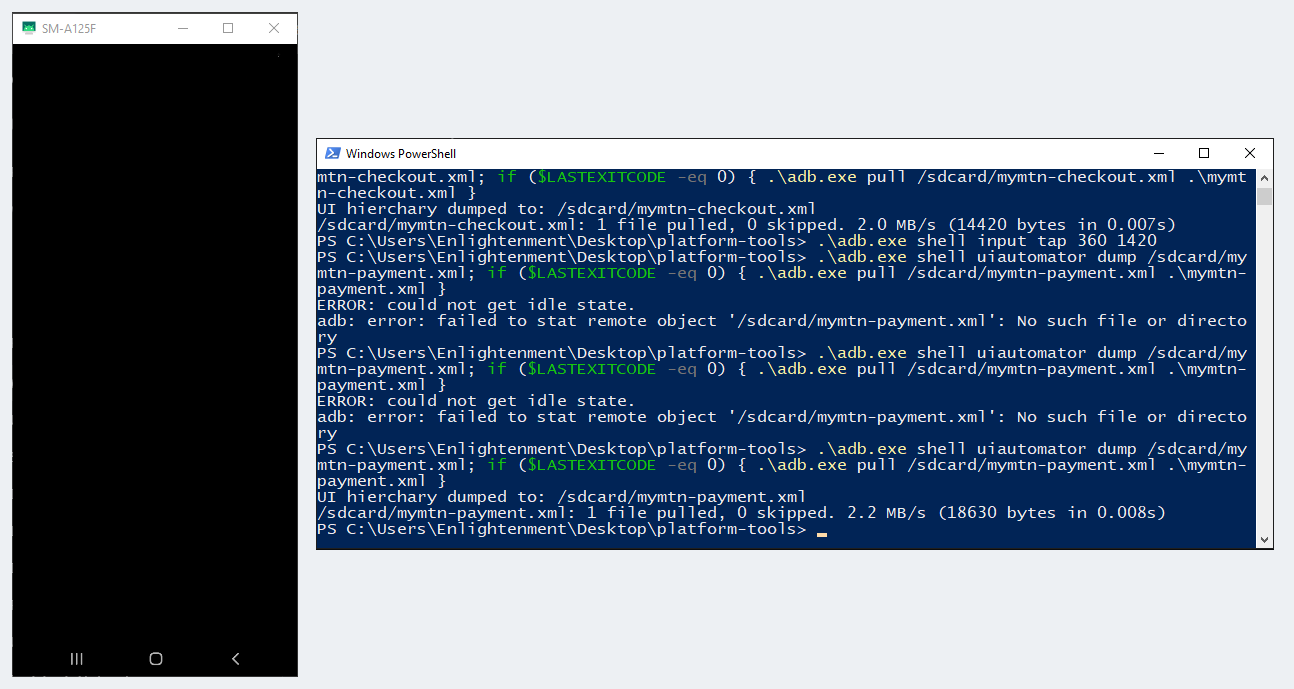
Figure 19. UIAutomator failed to get idle state before a later successful XML dump (Captured 2026-11-25 at 12:49)
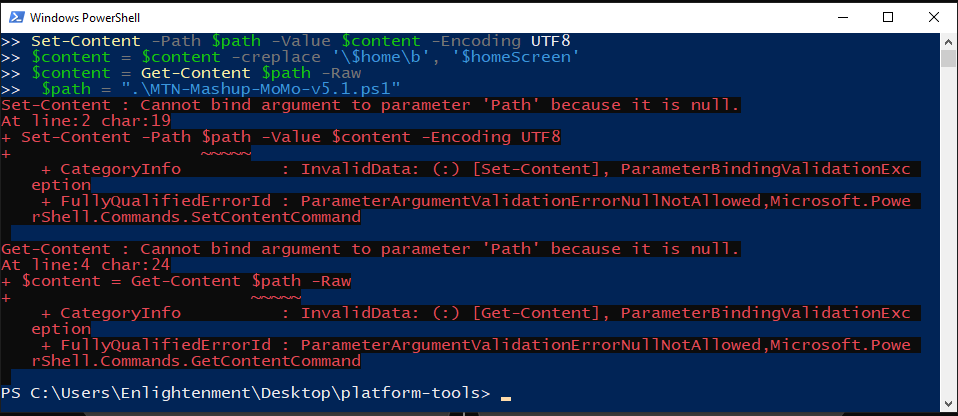
Figure 20. PowerShell script update failed because of incorrect variable usage (Captured 2026-11-25 at 13:03)
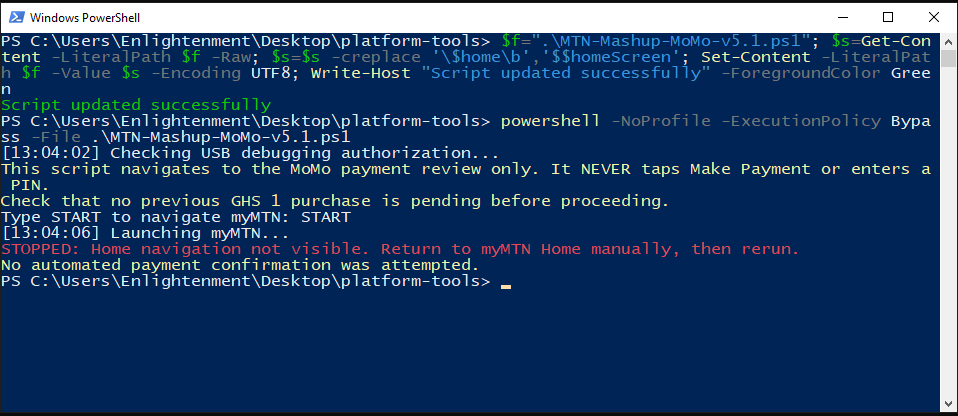
Figure 21. myMTN navigation detection prematurely stopped in v5.1 (Captured 2026-11-25 at 13:04)
Simply increasing the wait time was not a complete fix. The successful approach was to wait for specific screen elements, verify the expected page and stop if the page was not what the script anticipated. I kept an approximate 10-second timeout for normal screen checks, acknowledging that individual UI scans could take longer. The script also checked whether MoMo was actually selected before continuing.
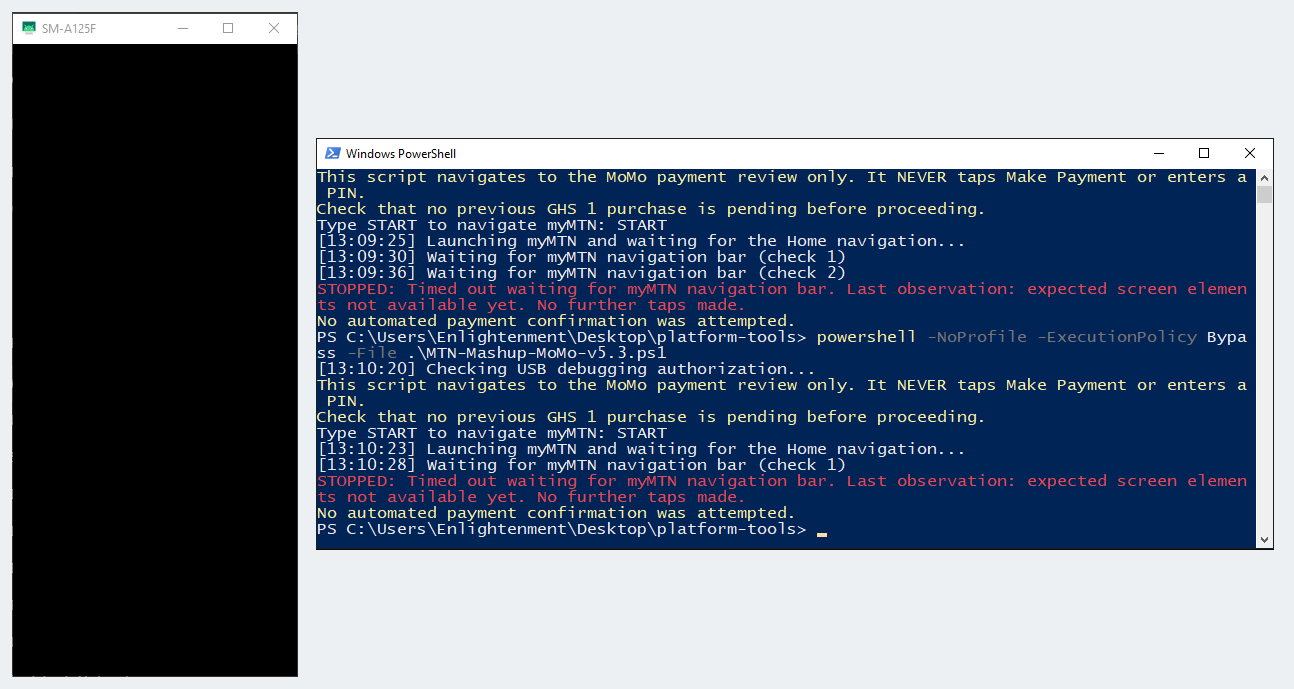
Figure 22. v5.3 ten-second wait did not recognize the Home navigation despite a loaded app (Captured 2026-11-25 at 13:11)
By version 5.4, the navigation worked end to end: the console reported SUCCESS: GHS 1 review screen reached with MoMo selected. That was the first reproducible app-checkout milestone.
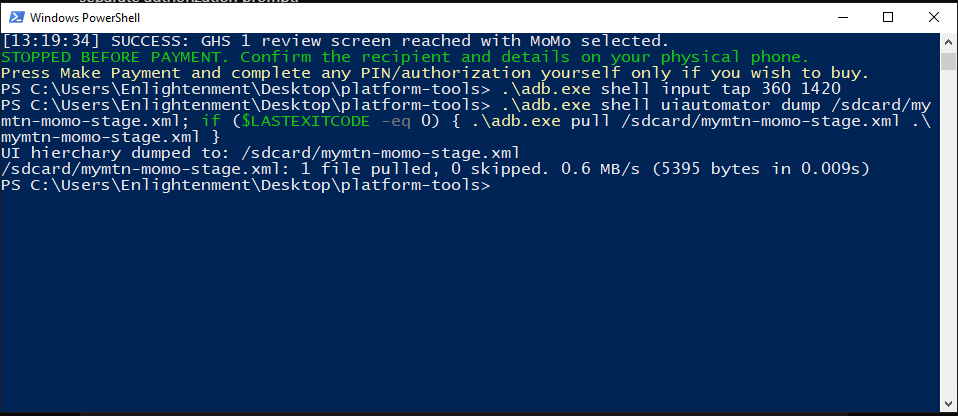
Figure 23. v5.4 PowerShell log reaching GHS 1 Review and Pay with MoMo selected (Captured 2026-11-25 at 13:22)
6. Extending the Test to a Real MoMo Authorization Prompt
I then tested what happened after the checkout’s Make Payment button was pressed. With the correct GHS 1 and MoMo review screen visible, one ADB tap initiated an actual Mobile Money authorization request. Android presented the message:
Authorize payment of GHS 1.00. Fee: GHS 0.00. Tax: 0. Enter MM PIN to continue.
The dialog came from com.android.phone, not a normal myMTN content view. Its UI hierarchy identified the message as com.android.phone:id/message, the input as com.android.phone:id/input_field, and the confirmation button as android:id/button1. This demonstrated that the payment request had reached the phone’s real network-authorization interface.
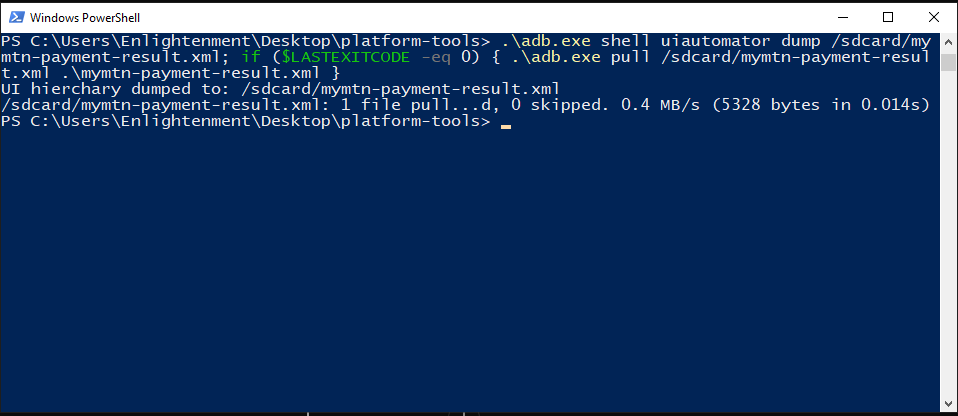
Figure 24. Android UI dump captured following Make Payment and MoMo authorization initiation (Captured 2026-11-25 at 13:26)
I deliberately kept the experiment to my own account. To test the console workflow without risking an intended subscription, I chose to submit an incorrect MoMo PIN. Later revisions of the script prompted for a masked PIN in PowerShell and sent it once, without automatic retries. I do not recommend ADB-based PIN entry for routine payments: masked terminal input does not make the ADB channel a protected banking input method, and failed authentication attempts may cause account restrictions.
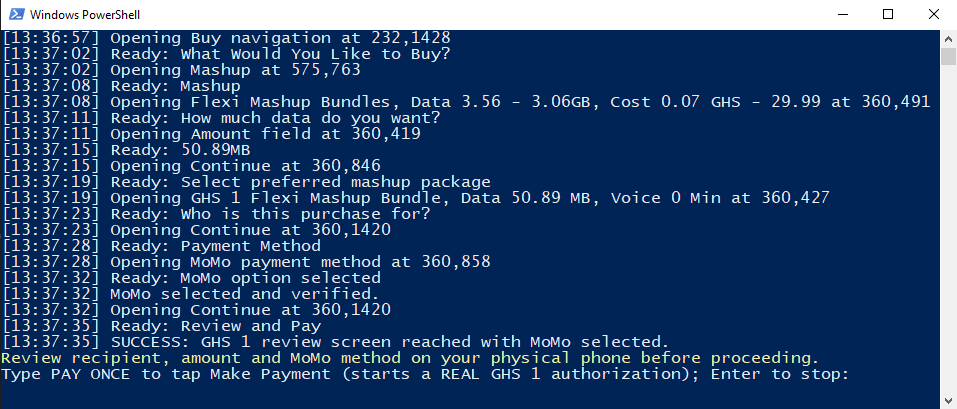
Figure 25. v5.6 checkout stopped for a manual PAY ONCE prompt (Captured 2026-11-25 at 13:38)
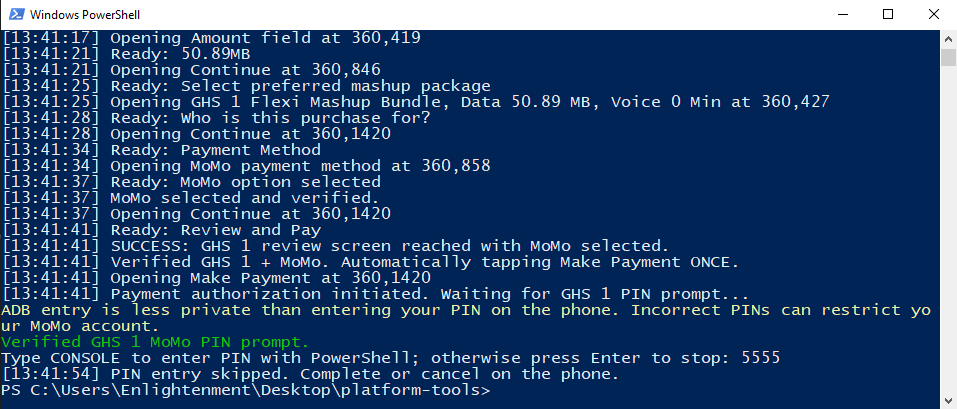
Figure 26. v5.7 stopped PIN entry because the prompt required a keyword (Captured 2026-11-25 at 13:42)
7. The Final MTN Yes/No Question
Following PIN submission, the phone displayed another USSD-like network dialog. This alone did not prove that the PIN was accepted:
Do you want to approve the transaction –
1) Yes
2) No
Version 5.9 added a final decision prompt with the choices YES, NO and LEAVE. The script did not make the choice itself. For my test, I explicitly entered NO. The console logged that it submitted the final No response once.
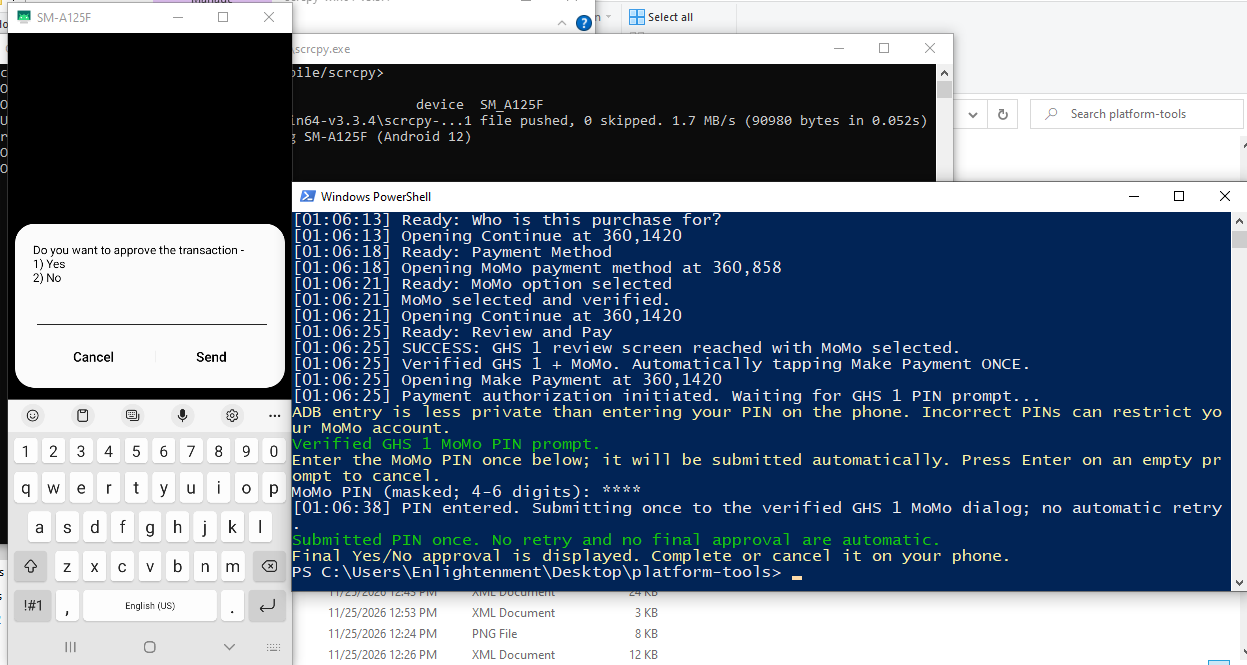
Figure 27. v5.8 masked PowerShell PIN submission with Yes No final authorization on phone (Captured 2026-11-26 at 01:08)
The unexpected detail came immediately afterward. The script could no longer detect the expected network dialog, but the phone itself displayed a clear response. The image below contains both the PowerShell trace and the phone message:
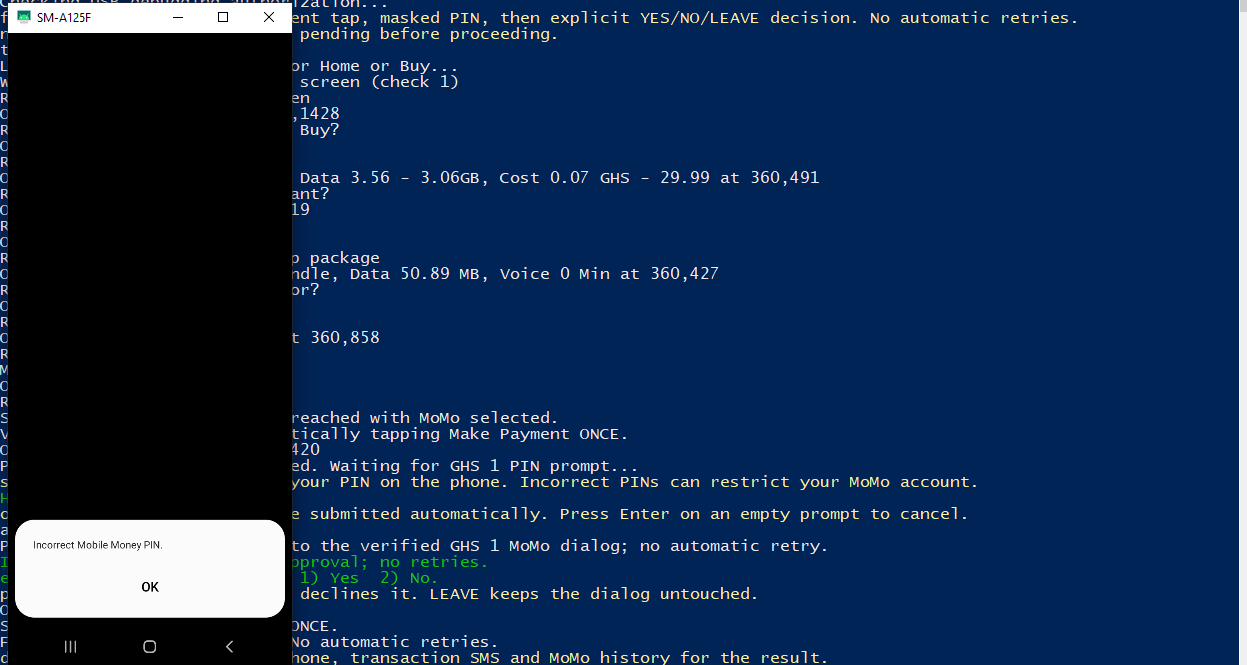
Figure 28. v5.9 phone showing Incorrect Mobile Money PIN after deliberately wrong PIN (Captured 2026-11-26 at 01:15)
This is why I prefer to publish the visible outcome rather than rely only on a script’s final message. The script said it had sent No, and its follow-up screen detection found no matching dialog. The physical phone supplied the stronger evidence of the result: incorrect PIN. The exact order and handling of the network prompts is an observation from this session, not a guarantee that another subscriber, app build or network session will behave identically.
8. Reviewing the Successful v5.9 Console Log
The last tested script automated the following stages: screen detection, Buy navigation, Mashup selection, GHS 1 amount entry, MoMo payment selection, Make Payment, PIN prompt recognition, one PIN submission, final approval prompt recognition and one explicit No response.
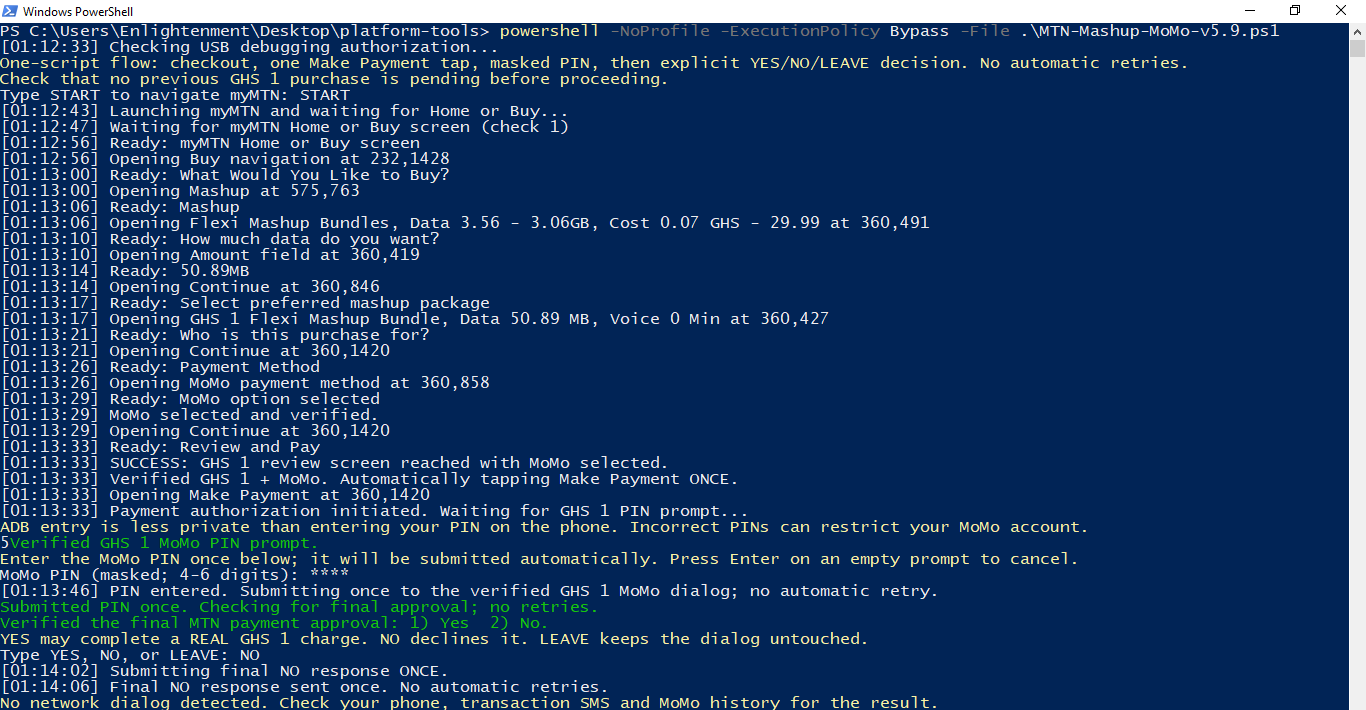
Figure 29. v5.9 final PowerShell trace showing explicit NO decision and no retry (Captured 2026-11-26 at 01:15)
Representative messages from the test included:
SUCCESS: GHS 1 review screen reached with MoMo selected.
Verified GHS 1 + MoMo. Automatically tapping Make Payment ONCE.
Verified GHS 1 MoMo PIN prompt.
Submitted PIN once. Checking for final approval; no retries.
Verified the final MTN payment approval: 1) Yes  2) No.
Final NO response sent once. No automatic retries.
No network dialog detected. Check your phone, transaction SMS and MoMo history for the result.
Although the script navigated and responded successfully, I did not verify a completed bundle purchase. Instead, I documented the deliberate incorrect-PIN response on the phone. This distinction matters: the automation test succeeded at controlling and observing the flow, while the payment test ended without a confirmed charge.
How I interpret the outcome: ADB successfully controlled the observed screens, including the final choice that I explicitly entered. But the “Incorrect Mobile Money PIN” message demonstrates that a completed charge was not verified. These are two different test results, and my article intentionally separates them.
9. Download the PowerShell Script
The tested file is MTN-Mashup-MoMo-v5.9.ps1. It is packaged with a README in a ZIP archive. Before publishing this post, upload the ZIP to your site’s media library or another trusted download location and replace the link below.
Download MTN Mashup MoMo ADB Automation v5.9 (ZIP)
For readers who want to inspect the test environment rather than repeat the payment, these are the basic local commands I used to check the device and the currently visible Android UI:
.\adb.exe devices
.\adb.exe shell dumpsys window
.\adb.exe shell uiautomator dump /sdcard/current-screen.xml
.\adb.exe pull /sdcard/current-screen.xml .\current-screen.xml
The v5.9 script was designed around this particular myMTN screen layout and a GHS 1 test configuration. It may stop or require modification if MTN updates the interface, screen layout, network workflow or bundle offerings. Anyone inspecting the source should understand that the script can initiate a real charge and can submit a PIN through ADB if the operator chooses to provide one. It should never be used on another person’s device or payment account without explicit authorization.
10. Security and Privacy Lessons From This Test
- No root was required: ADB with authorized USB debugging was sufficient for the tested UI controls.
- A black screen is not total isolation: In this app version, the UI hierarchy remained readable even when scrcpy could not show the app’s contents.
- UI automation is not an authorization bypass: MTN still requested a Mobile Money PIN and a separate approval decision.
- Do not trust the console alone: ADB successfully sent the final No response, but the physical phone’s incorrect-PIN message clarified the eventual outcome.
- Credentials deserve stronger handling: A masked PowerShell prompt conceals on-screen typing but does not make ADB a private, hardware-backed PIN interface. If a computer may be monitored, enter secrets only through the trusted on-device interface and review the PC’s security.
- Avoid publishing raw captures: UI XML and screenshots can reveal phone numbers, account details, transaction references and potentially other sensitive content. I have omitted such data from this post.
- Do not retry uncertain transactions blindly: Check MTN confirmations and transaction history first, and avoid repeated incorrect PIN attempts.
Conclusion: Beyond MTN Mashup — A World of Android Automation
When I started this experiment, my goal was simple: could I automate an MTN Ghana Mashup bundle purchase on my Samsung Galaxy A12 without rooting the phone? What I discovered was much more interesting than a single telecom transaction.
We have barely scratched the surface of what ADB-powered Android automation can do.
Using Windows PowerShell, ADB and carefully verified screen interactions, I launched myMTN, selected a GHS 1 Flexi Mashup, chose MoMo, initiated a genuine authorization request, submitted a deliberately incorrect PIN once, and interacted with the final Yes/No prompt. The phone subsequently reported Incorrect Mobile Money PIN. I therefore cannot claim a successful subscription or payment. What this experiment did demonstrate is that a non-rooted phone’s app interface could be navigated and controlled programmatically through these stages.
What if our phones could handle repetitive work while we sleep?
Many of us repeat the same actions on our phones every day: opening apps, checking downloads, looking for error messages, restarting tasks, and navigating familiar menus. Now imagine having scripts that perform those routines on our behalf, logging their progress and asking for human help only when necessary.
Consider someone who starts a large download at dawn using a night data bundle and then falls asleep. The bundle runs out halfway through, the download fails, and the person wakes up hours later expecting a completed file. A more advanced automation system could monitor download progress and available connectivity, recognize the stall, attempt a safe reconnection or resume, and notify the user about exhausted data. Where the app and provider permit it, a separately authorized bundle-purchase step could then restore service so the download resumes.
That is a future project, not a feature demonstrated by today’s script. Reliable unattended operation would require task scheduling, data-usage monitoring, error detection, resilience to app updates, and clear spending limits. Payment credentials and final purchase approval should not be left to an insecure or untrusted computer.
ADB can also operate wirelessly
The Galaxy A12 in this test was connected by USB, but ADB can also connect over an authorized network debugging session. Depending on Android version and configuration, this may use wireless debugging or a configured TCP/IP debugging connection. In a trusted environment, a computer could coordinate approved phone tasks without keeping a USB cable attached. Such access must be restricted because an exposed ADB connection can give another device powerful control over the phone.
From scripts to agents
A basic script follows a fixed series of taps and key presses. A more capable automation agent can examine the screen’s UI hierarchy, recognize its current state, react to unexpected messages, maintain logs, and choose between safe recovery actions. This experiment already hinted at the difference: hard-coded assumptions failed, whereas detecting actual controls allowed later versions to progress.
The same building blocks could help with repetitive application testing, checking the status of long-running operations, organizing files, reviewing diagnostics, and assisting with workflows across apps that expose usable UI controls. Not every Android app or protected screen is automatable; permissions, secure interfaces, changing layouts, battery restrictions and application policies all set real boundaries.
My biggest takeaway is this: instead of only using our phones, we can begin designing carefully controlled systems that make our phones work for us. What started as a GHS 1 Mashup experiment has opened a broader question: how many everyday tasks could we safely hand over to scripts or agents, even while we sleep?
For me, this experiment is not the end of the investigation. It is the beginning of a much larger journey into practical Android automation.


